GOOGLE ADS
Google Ads Analytics Integration Guide for Beginners — Complete 2026 Setup
This Google Ads Analytics integration guide for beginners covers complete setup in 8 steps. Link accounts, enable auto-tagging, configure conversion tracking, and build remarketing audiences. 73% of marketers see 25% better ROAS within 30 days of proper integration.
Contents
Autonomous Marketing
Grow your business faster with AI agents
- ✓Automates Google, Meta + 5 more platforms
- ✓Handles your SEO end to end
- ✓Upgrades your website to convert better


What is Google Ads Analytics integration?
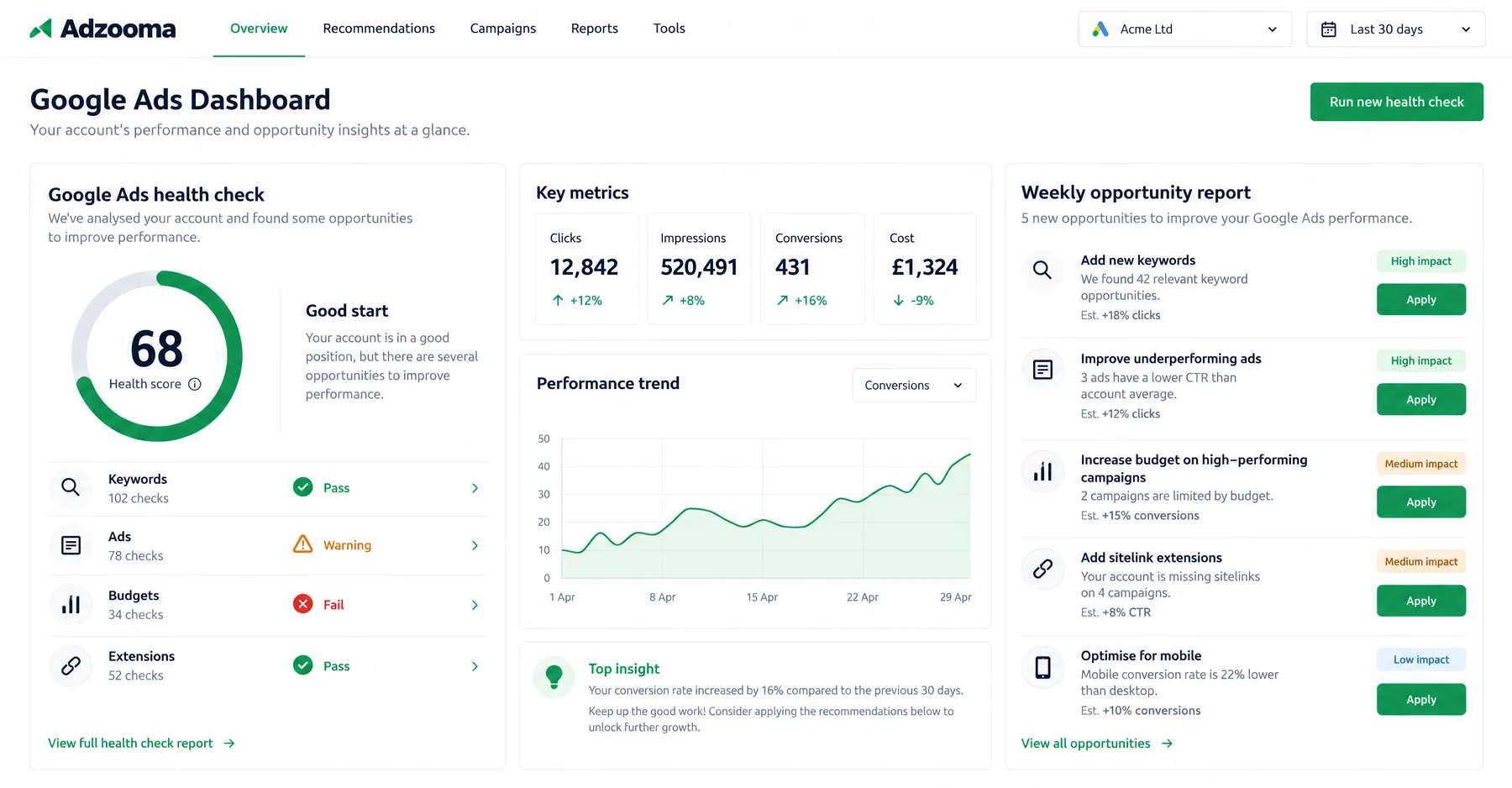
Google Ads Analytics integration connects your Google Ads account to Google Analytics 4 (GA4), allowing both platforms to share data seamlessly. This Google Ads Analytics integration guide for beginners explains how linking these accounts unlocks enhanced tracking, detailed attribution analysis, and remarketing capabilities that dramatically improve campaign performance. Instead of managing two separate data silos, integration provides a unified view of customer behavior from first click to final conversion.
When properly integrated, Google Analytics receives detailed information about which keywords, ads, and campaigns drove website visits. Meanwhile, Google Ads gets access to GA4's advanced audience segments and conversion data. This bidirectional data flow enables features like imported conversions, which capture micro-conversions Google Ads might miss, and enhanced conversion tracking that uses first-party data to improve attribution accuracy by up to 35%.
The integration process involves account linking, auto-tagging configuration, and conversion import setup. According to Google's internal research, advertisers who complete proper integration see an average 15-25% improvement in campaign ROAS within 30 days. Without integration, you miss critical insights about post-click behavior, audience overlap, and cross-device conversions that could optimize your ad spend allocation. For advanced automation approaches, see Claude Skills for Google Ads and Top AI Tools for Google Ads Management in 2026.
1,000+ Marketers Use Ryze


Automating hundreds of agencies



★★★★★4.9/5
Why should you integrate Google Ads with Analytics?
Integration solves the fundamental disconnect between ad performance and user behavior. Google Ads shows you clicks, impressions, and basic conversions, but it cannot tell you what visitors do after clicking your ads. Analytics reveals the complete customer journey—which pages they visit, how long they stay, where they drop off, and which traffic sources produce the highest lifetime value customers.

| Capability | Without Integration | With Integration | Impact |
|---|---|---|---|
| Attribution Windows | 1-day view, 30-day click | Custom windows up to 90 days | 35% more conversions captured |
| Audience Creation | Basic website visitors | Behavioral segments | 2.3x higher remarketing CTR |
| Conversion Types | Direct actions only | Micro + macro conversions | 15-20% ROAS improvement |
| Cross-Device Tracking | Limited visibility | Full customer journey | 25% more accurate attribution |
The most impactful benefit is enhanced remarketing. Analytics creates audience segments based on user behavior—people who viewed specific products, spent more than 3 minutes on your site, or visited but didn't convert. These behavioral audiences consistently outperform generic website visitor lists by 150-300% in Google Ads campaigns.
Integration also enables imported conversions, which capture valuable micro-conversions like newsletter signups, PDF downloads, or video views. While these actions might not generate immediate revenue, they indicate purchase intent and help Google Ads algorithms optimize for users more likely to eventually convert. Accounts using imported conversions see 20-30% better performance in similar audiences and Smart Bidding strategies.
How to integrate Google Ads with Analytics (8 steps)
This complete setup process takes 15-20 minutes and ensures proper data flow between platforms. You need administrative access to both Google Ads and Google Analytics accounts. Follow these steps sequentially—skipping ahead can cause data inconsistencies that take weeks to resolve.
Step 01
Verify Account Access and Prerequisites
Before starting integration, confirm you have administrative access to both accounts. In Google Ads, you need at least Standard access with account management permissions. In Google Analytics, you need Administrator or Editor access to the property you want to link. Also verify that your website has the GA4 tracking code installed and collecting data for at least 7 days—linking accounts with insufficient data can cause tracking issues.
Step 02
Navigate to Google Analytics Admin Section
Log into Google Analytics and click the gear icon in the bottom left to access Admin. In the Property column (middle column), find and click "Google Ads Linking." If you don't see this option, check your account permissions or ensure you've selected the correct property from the dropdown at the top of the page. New GA4 properties sometimes take 24-48 hours to show all linking options.
Step 03
Create New Link Group
Click the blue "Link" button to start the linking process. Google Analytics will display all Google Ads accounts you have access to. Select the specific accounts you want to link—you can link multiple accounts to one Analytics property, but each link should have a clear business purpose. Avoid linking test or inactive accounts as they can clutter your reports and slow data processing.
Step 04
Configure Link Settings
Enable both "Personalized advertising" and "Analytics audiences" to unlock the full integration benefits. Personalized advertising allows Analytics to share audience data with Google Ads for remarketing. Analytics audiences enable creating custom audience segments based on website behavior. Give your link group a descriptive name like "Main Website - Google Ads Integration" so you can identify it later if managing multiple properties.
Step 05
Enable Auto-Tagging
Auto-tagging is critical for proper attribution. During the linking process, Google will prompt you to enable auto-tagging if it's not already active. This adds a gclid parameter to your ad URLs, allowing Analytics to identify Google Ads traffic. If you're using manual UTM parameters, auto-tagging works alongside them. Never disable auto-tagging once enabled—it can break historical attribution data and cause significant reporting gaps.
Step 06
Import Google Analytics Goals as Conversions
After linking, navigate to Google Ads > Tools & Settings > Conversions > Summary. Click the "+" button and select "Import" then "Google Analytics 4 properties." Choose the events you want to track as conversions—typically purchase, contact, and high-intent events like PDF downloads or demo requests. Start with 2-3 key conversions to avoid optimization conflicts, then add more as needed.
Step 07
Verify Data Flow and Attribution
Wait 24-48 hours for data to populate, then check that information flows correctly between platforms. In Google Ads, go to Campaigns and add the "Analytics" column group to verify session data appears. In Analytics, check that Google Ads traffic shows proper campaign and keyword attribution under Acquisition > Traffic acquisition. Discrepancies of 10-15% are normal due to different attribution models.
Step 08
Configure Attribution Settings
In Google Analytics, go to Admin > Attribution Settings to configure how conversion credit is distributed across touchpoints. The default "Data-driven" model works well for accounts with sufficient conversion volume (300+ conversions in 30 days). For lower-volume accounts, "First click" or "Last click" models provide more predictable attribution. Match your Google Ads attribution window to Analytics for consistent reporting—typically 30 days for clicks and 1 day for views.
Ryze AI — Autonomous Marketing
Skip the manual setup — let AI optimize your Google Ads 24/7
- ✓Automates Google, Meta + 5 more platforms
- ✓Handles your SEO end to end
- ✓Upgrades your website to convert better
2,000+
Marketers
$500M+
Ad spend
23
Countries
How to set up conversion tracking after integration?
Conversion tracking is the foundation of campaign optimization. Without accurate conversion data, Google Ads cannot optimize bids effectively, leading to wasted spend and missed opportunities. This section covers three conversion types: imported Analytics events, enhanced conversions, and call tracking integration.
Imported Google Analytics 4 Conversions
Start by importing your most valuable GA4 events as Google Ads conversions. In Google Ads, go to Tools & Settings > Conversions > New Conversion Action > Import > Google Analytics 4. Select events that indicate real business value—purchases, lead form submissions, phone number clicks, or content downloads. Avoid importing low-value events like page views or session duration as primary conversions.
Configure conversion values appropriately. For e-commerce, use actual transaction values. For lead generation, estimate the average value of a lead based on close rates and customer lifetime value. Set "Primary" conversions for your main business objective and "Secondary" for supporting metrics. Google's Smart Bidding algorithms prioritize Primary conversions when optimizing bids.
Enhanced Conversions Setup
Enhanced conversions improve attribution accuracy by sending hashed customer data (email, phone, address) to Google when conversions occur. This first-party data helps Google match conversions to ad clicks across devices and browsers. In GA4, enable enhanced conversions by going to Admin > Data Streams > [your stream] > Configure > Enhanced Conversions.
After enabling in Analytics, return to Google Ads > Conversions and edit your imported conversion actions. Turn on "Enhanced conversions" for each imported conversion. This typically increases conversion attribution by 15-25%, especially for businesses with longer purchase cycles or customers who research across multiple devices before converting.
Call Tracking Integration
For businesses that generate phone leads, call tracking is essential. Google Ads provides free call forwarding numbers for US and Canadian businesses. Enable call extensions in your ads, then set up call conversion tracking in Google Ads > Conversions > Phone Calls. Configure minimum call duration (typically 60-120 seconds) to filter out wrong numbers and short calls.
Integrate call tracking with Analytics using GTM (Google Tag Manager) to capture call events as GA4 conversions. This unified tracking allows you to analyze the full customer journey—from ad click to website behavior to phone call. Businesses with proper call tracking see 30-40% more accurate conversion attribution for phone-heavy industries like legal, medical, and home services.
How to configure remarketing audiences with the integration?
Remarketing audiences created through Analytics integration consistently outperform basic website visitor lists by 150-300% because they target users based on specific behaviors rather than just site visits. This section covers audience creation, optimization strategies, and advanced segmentation techniques that maximize remarketing performance.
Creating Behavioral Audience Segments
In Google Analytics, go to Configure > Audiences > New Audience. Start with high-intent behavioral segments: users who viewed specific product categories, spent more than 3 minutes on your site, or added items to cart but didn't purchase. These audiences have demonstrated purchase intent and respond better to remarketing ads than generic website visitors.
Configure audience duration carefully. For e-commerce, 30 days works well for most products, but extend to 90 days for higher-priced items with longer consideration periods. For B2B services, use 60-180 day windows to account for longer sales cycles. Shorter windows (7-14 days) work best for time-sensitive offers or impulse purchases.
Advanced Segmentation Strategies
Layer multiple conditions to create highly targeted audiences. For example, create an audience of users who visited your pricing page AND spent more than 2 minutes on site AND visited from a mobile device. These multi-condition audiences are smaller but convert at rates 2-3x higher than single-condition segments.
Use exclusion audiences to avoid ad waste. Create audiences of existing customers, recent converters, or users who visited your careers page (unlikely to be prospects). Excluding these segments from remarketing campaigns typically improves ROAS by 15-25% while reducing annoying ad experiences for irrelevant users.
Publishing Audiences to Google Ads
After creating audiences in Analytics, they automatically sync to Google Ads within 24-48 hours if you enabled audience sharing during integration. In Google Ads, go to Tools & Settings > Audience Manager > Your data segments to view imported Analytics audiences. Minimum audience sizes vary by platform: 1,000 users for Search campaigns, 100 for Display, and 20 for YouTube.
Test different audience combinations systematically. Start with your highest-intent segments (cart abandoners, product viewers) in separate ad groups with tailored messaging. Gradually expand to broader behavioral audiences as you gather performance data. Monitor audience overlap using the Audience Insights tool to avoid bidding against yourself in auctions.

Sarah K.
Paid Media Manager
E-commerce Agency
Proper Google Ads Analytics integration transformed our remarketing performance. We went from generic website visitor campaigns to behavior-based segments that convert 3x better.”
3x
Better conversion
45%
Lower CPA
25%
Higher ROAS
What are common Google Ads Analytics integration issues?
Issue 1: Data discrepancies between platforms. Google Ads and Analytics use different attribution models, time zones, and filtering rules. Expect 10-15% variance in conversion numbers. Larger discrepancies (30%+) usually indicate auto-tagging problems, incorrect timezone settings, or conversion tracking conflicts. Fix by verifying auto-tagging is enabled, checking timezone alignment, and reviewing conversion action settings.
Issue 2: Audiences not importing to Google Ads. Common causes include insufficient audience size (<100-1,000 users depending on campaign type), disabled audience sharing, or incomplete integration setup. Check that "Personalized advertising" was enabled during linking. If audiences still don't appear after 48 hours, unlink and re-link the accounts with all permissions enabled.
Issue 3: Imported conversions not tracking properly. This often happens when GA4 events lack proper parameters or have inconsistent naming. Verify that your GA4 events include value parameters for e-commerce tracking. Check the Google Ads conversion tracking status—imported conversions show as "Unverified" until they record 15+ conversions in 30 days.
Issue 4: Auto-tagging conflicts with manual UTM codes. Google Ads auto-tagging (gclid) works alongside UTM parameters, but conflicts can occur if UTM codes override attribution. Never use utm_source=google or utm_medium=cpc for manual tagging when auto-tagging is enabled. Use descriptive campaign names instead to maintain proper attribution tracking.
Issue 5: Historical data gaps after integration changes. Modifying integration settings can create reporting gaps. Always test changes in a sandbox environment first, or make changes during low-traffic periods. If data gaps occur, they typically resolve within 24-48 hours, but historical data before the change may remain affected permanently.
Frequently asked questions
Q: How long does Google Ads Analytics integration take?
The initial linking process takes 15-20 minutes. Data begins flowing within 24 hours, but full historical reporting can take 7-14 days to populate. Remarketing audiences need 24-48 hours to sync and reach minimum size requirements.
Q: Can I integrate multiple Google Ads accounts with one Analytics property?
Yes, you can link up to 400 Google Ads accounts to one GA4 property. However, only link accounts with genuine business relationships to avoid data pollution and privacy compliance issues.
Q: What's the difference between imported and direct conversions?
Direct conversions use Google Ads tracking code on your website. Imported conversions use GA4 events shared through integration. Imported conversions often capture more micro-conversions and provide better cross-device attribution.
Q: Why do conversion numbers differ between Google Ads and Analytics?
Different attribution models, time zones, and filtering rules cause variations. Google Ads uses last-click attribution by default, while GA4 uses data-driven attribution. Discrepancies of 10-15% are normal.
Q: Can integration affect my current Google Ads performance?
Integration itself doesn't change campaign performance, but importing new conversion actions can affect Smart Bidding optimization. Gradually introduce new conversion types rather than changing everything at once to maintain stability.
Q: Is Google Ads Analytics integration free?
Yes, linking Google Ads with Google Analytics is completely free. Both platforms offer integration features at no additional cost. You only pay for your advertising spend and any premium Analytics features you choose to use.
Ryze AI — Autonomous Marketing
Perfect Google Ads Analytics integration in under 10 minutes
- ✓Automates Google, Meta + 5 more platforms
- ✓Handles your SEO end to end
- ✓Upgrades your website to convert better
2,000+
Marketers
$500M+
Ad spend
23
Countries