We connected 16 Google Ads MCP servers and ranked them on what they can change and what they cost.
|
Ira Bodnar··Updated ·18 min read
Used by 2,000+ marketers
Quick comparison: 16 Google Ads MCP servers at a glance
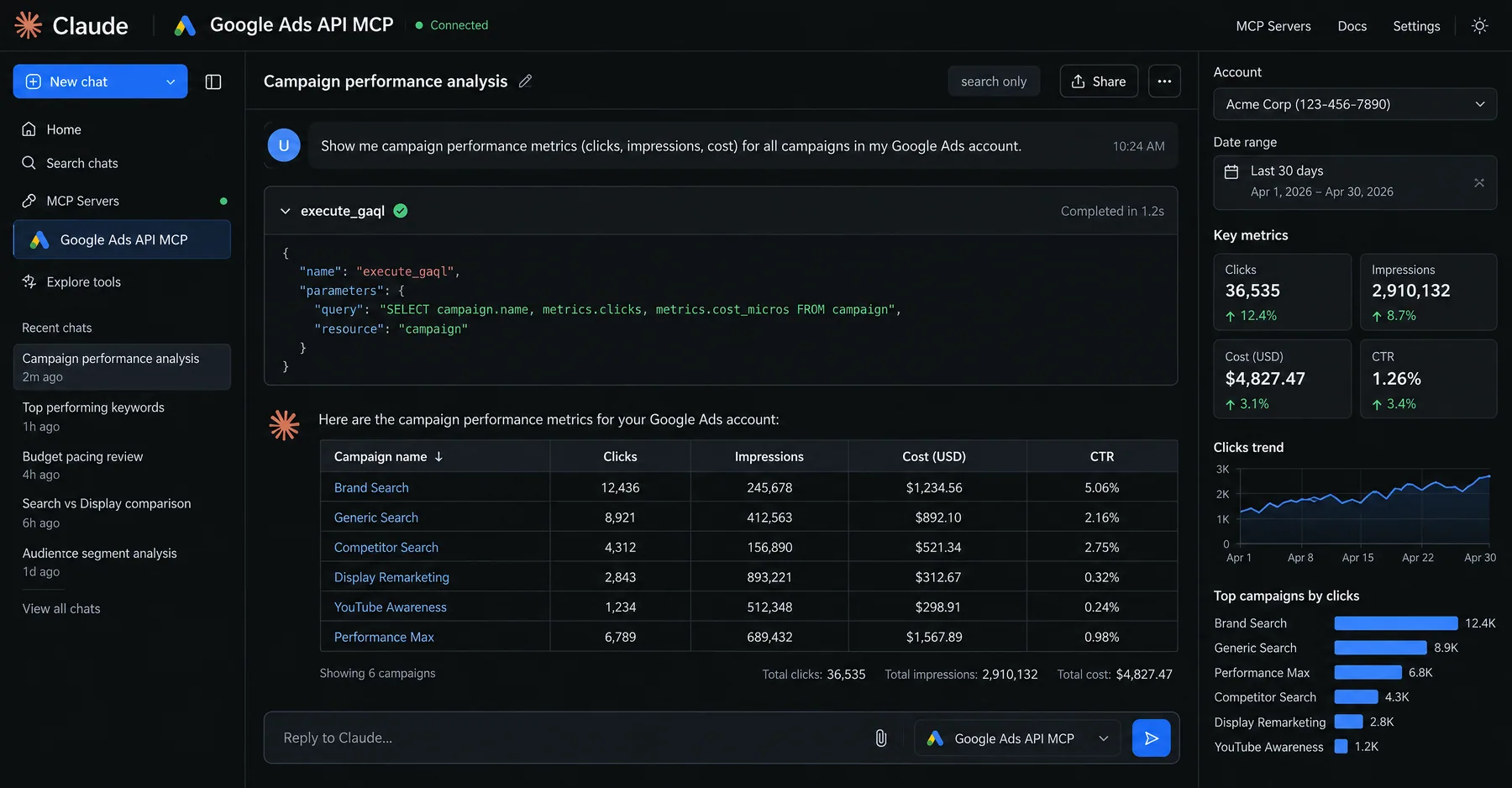
An MCP server is what lets Claude, ChatGPT or Cursor read a Google Ads account and, on some servers, change it. One question decides most of this list: can the server write, and if it can, what sits between the agent's decision and your live budget. Scores are editorial, from connecting each server and running the same 12 prompts, with prices taken from each vendor's pricing page on September 22, 2026.
1Ryze AI MCP9.4/10
Writes and safety gate: Full writes, every change approval-gated; cheapest full-write option
Price: Free to connect · $89 autopilot optional
2Pipeboard8.7/10
Writes and safety gate: Full lifecycle writes, hosted
Price: Free · $29.90/mo
3Google official MCP8.5/10
Writes and safety gate: Read-only by design
Price: Free, self-hosted
4Adspirer8.3/10
Writes and safety gate: Writes on 6 platforms, task-metered
Price: Free · from $40/mo
5AdKit8.1/10
Writes and safety gate: Writes saved as drafts first
Price: $29 · $49/mo
6GoMarble7.8/10
Writes and safety gate: Approval-gated writes on Operator plan
Price: $139 · $399/mo
7google-ads-copilot7.2/10
Writes and safety gate: Staged writes, open source
Price: Free, self-hosted
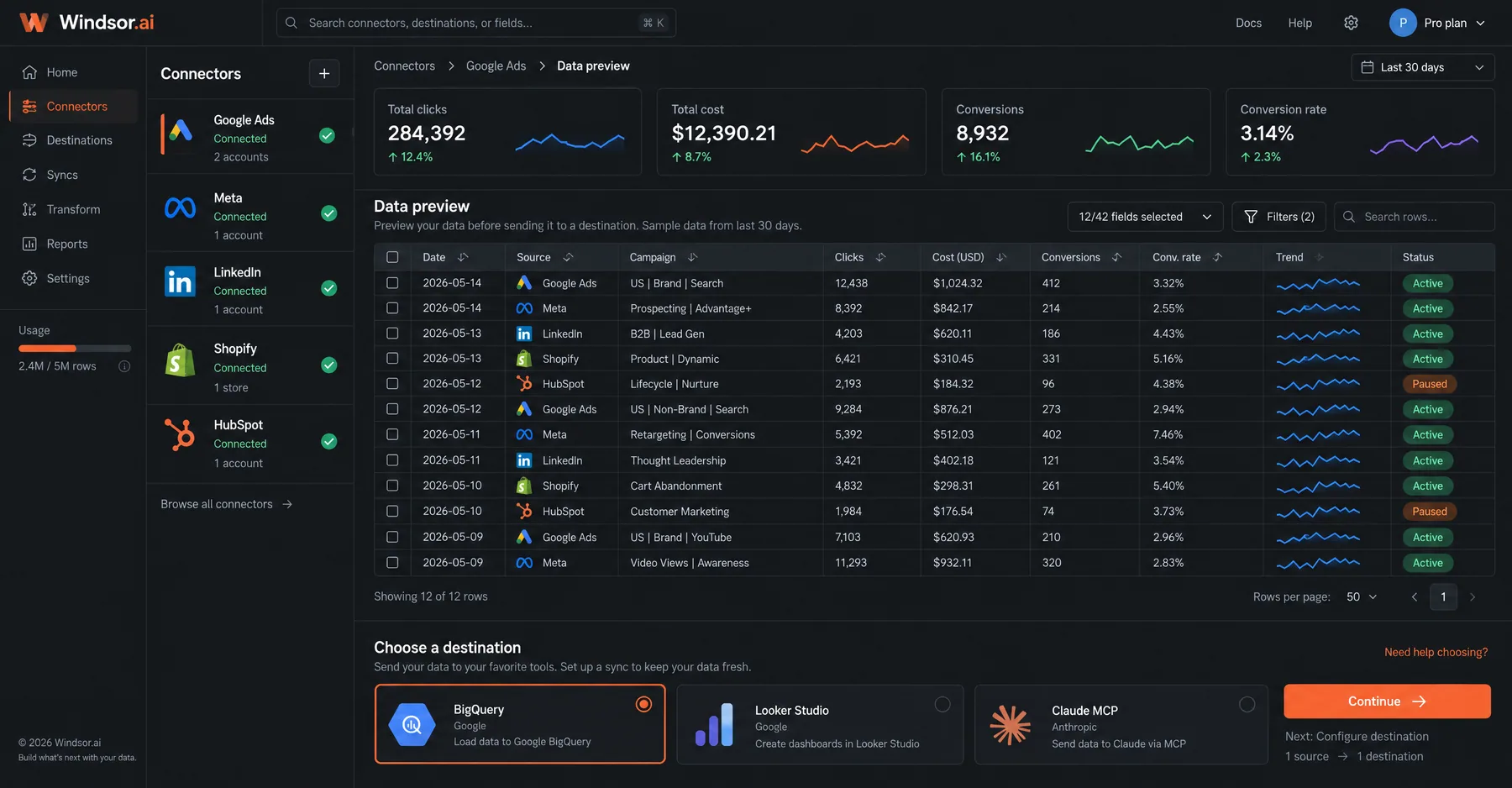
8Windsor.ai7.1/10
Writes and safety gate: Reporting-first, 350+ sources
Price: Free · paid tiers
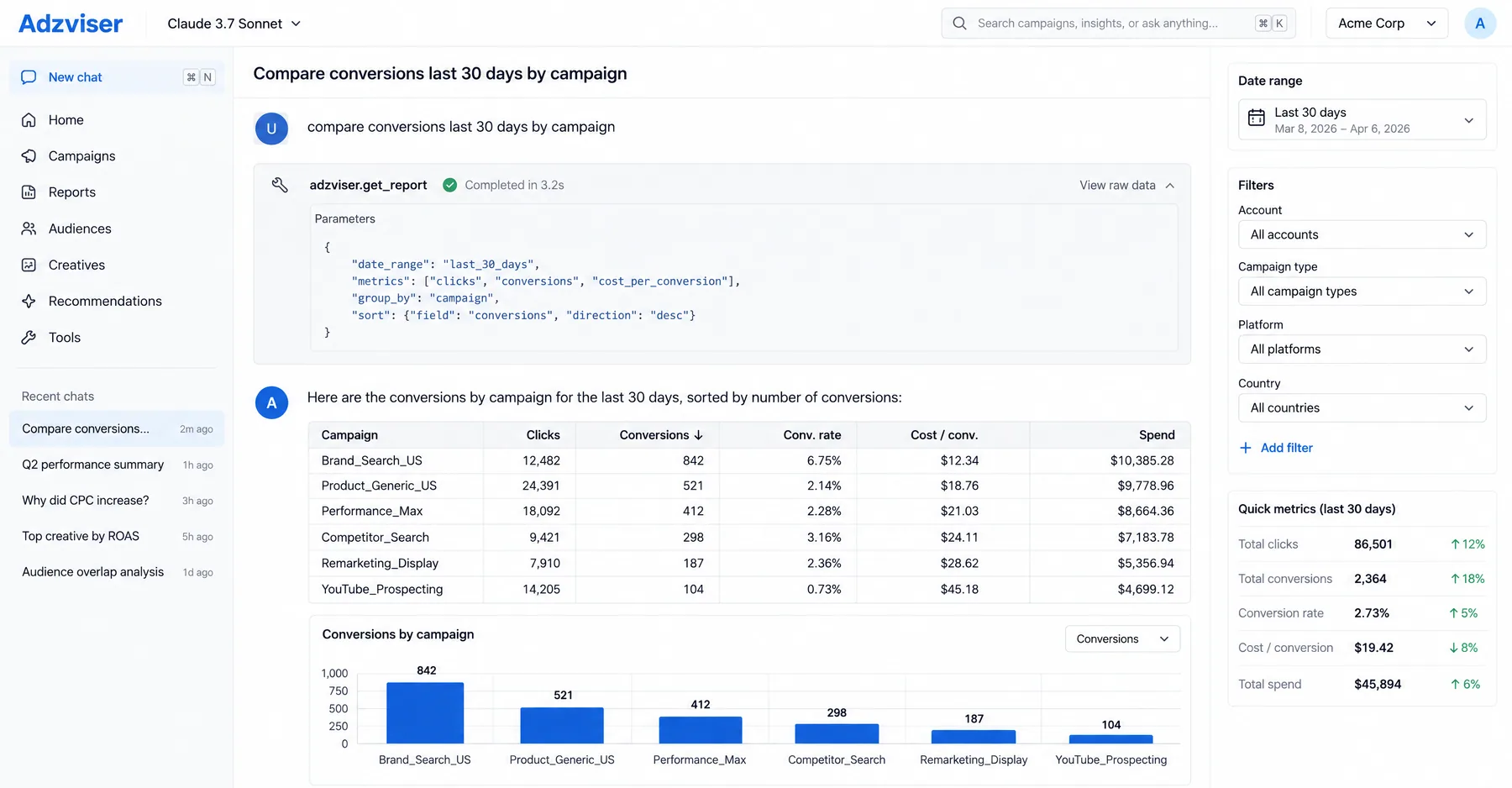
9Adzviser7.0/10
Writes and safety gate: Read-only, directory install
Price: from $48.99/mo
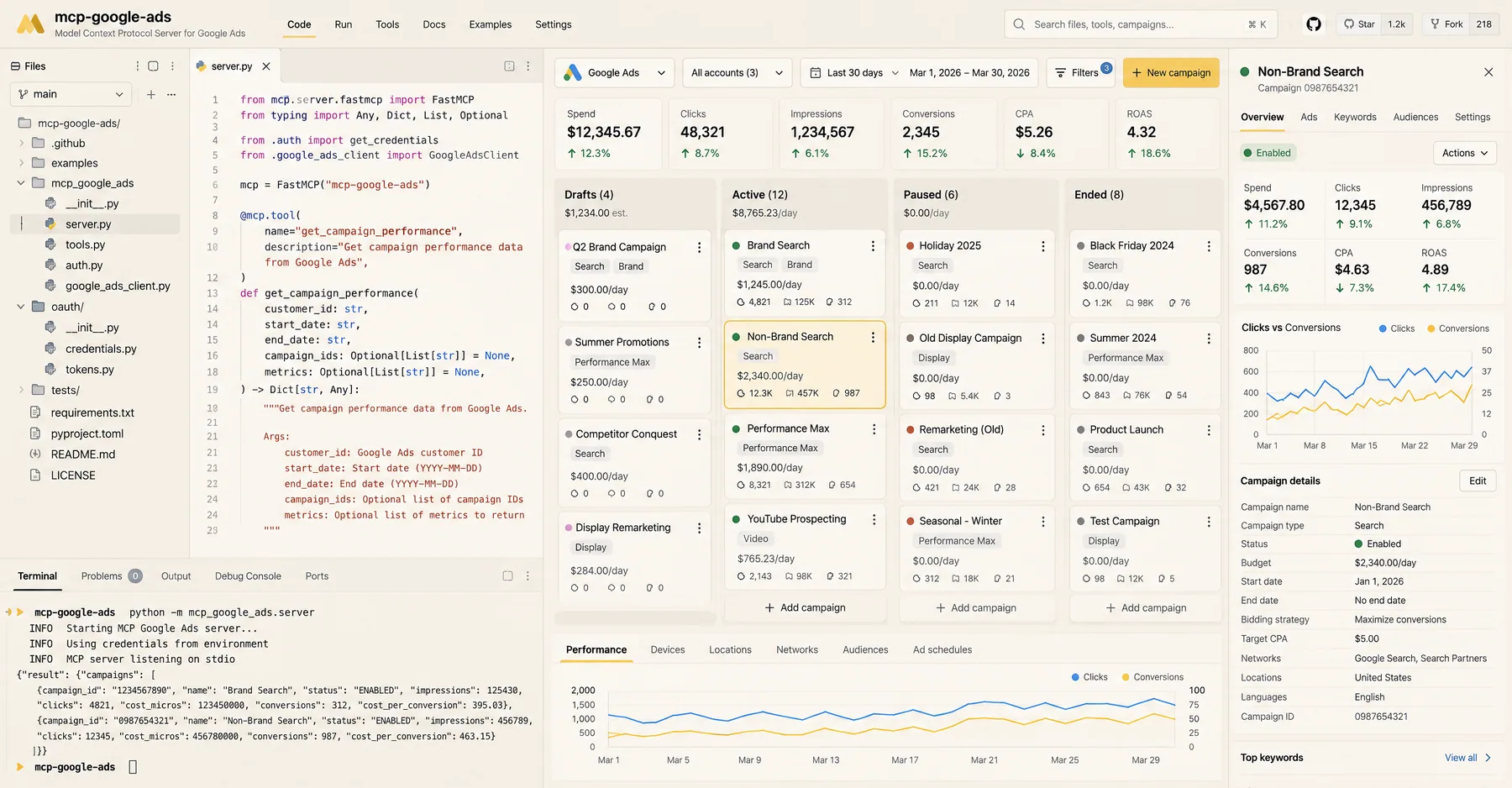
10cohnen/mcp-google-ads6.9/10
Writes and safety gate: Community server, self-hosted
Price: Free, self-hosted
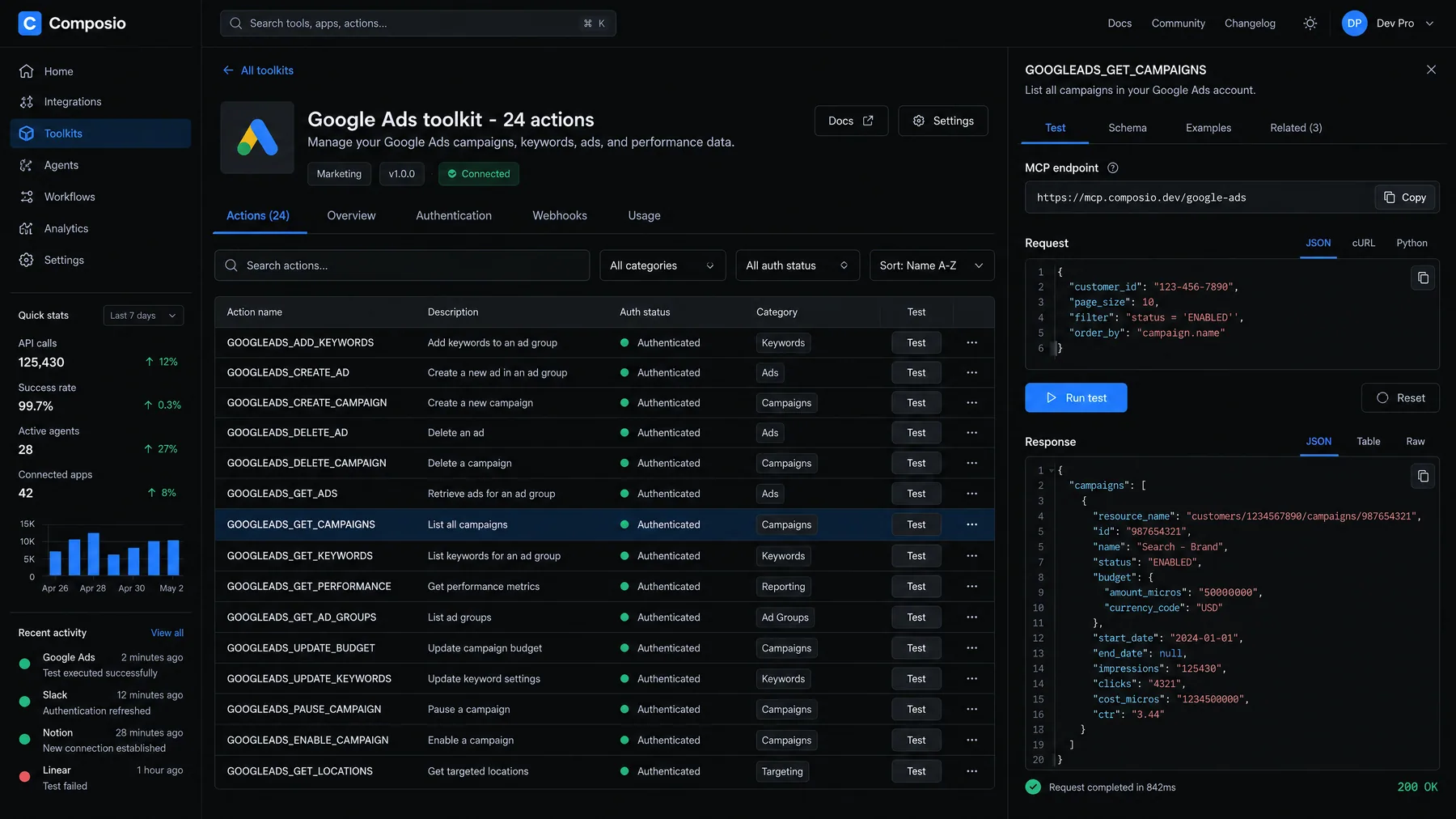
11Composio6.6/10
Writes and safety gate: Developer toolkit, no approval step
Price: Free tier · usage
12Funnel.io6.5/10
Writes and safety gate: Read-only data hub
Price: from $300/mo
13Improvado6.4/10
Writes and safety gate: Read-only analysis
Price: Free · MCP $100/mo
14Databox6.1/10
Writes and safety gate: Read-only KPI metrics
Price: Free · from $64/mo
15Fivetran6.0/10
Writes and safety gate: Warehouse route, SQL MCP
Price: Free tier · usage
16Zapier MCP5.6/10
Writes and safety gate: Lists, conversions, pause only
Price: Free tier · paid
Rank
MCP server
Score
Writes and safety gate
Price
1
Ryze AI MCP
9.4/10
Full writes, every change approval-gated; cheapest full-write option
Free to connect · $89 autopilot optional
2
Pipeboard
8.7/10
Full lifecycle writes, hosted
Free · $29.90/mo
3
Google official MCP
8.5/10
Read-only by design
Free, self-hosted
4
Adspirer
8.3/10
Writes on 6 platforms, task-metered
Free · from $40/mo
5
AdKit
8.1/10
Writes saved as drafts first
$29 · $49/mo
6
GoMarble
7.8/10
Approval-gated writes on Operator plan
$139 · $399/mo
7
google-ads-copilot
7.2/10
Staged writes, open source
Free, self-hosted
8
Windsor.ai
7.1/10
Reporting-first, 350+ sources
Free · paid tiers
9
Adzviser
7.0/10
Read-only, directory install
from $48.99/mo
10
cohnen/mcp-google-ads
6.9/10
Community server, self-hosted
Free, self-hosted
11
Composio
6.6/10
Developer toolkit, no approval step
Free tier · usage
12
Funnel.io
6.5/10
Read-only data hub
from $300/mo
13
Improvado
6.4/10
Read-only analysis
Free · MCP $100/mo
14
Databox
6.1/10
Read-only KPI metrics
Free · from $64/mo
15
Fivetran
6.0/10
Warehouse route, SQL MCP
Free tier · usage
16
Zapier MCP
5.6/10
Lists, conversions, pause only
Free tier · paid
Three groups. Hosted account servers (Ryze AI, Pipeboard, Adspirer, AdKit, GoMarble) can change the account and differ mainly in how they gate those changes. Open-source servers (Google's official one, google-ads-copilot, cohnen) are free and deep on reads but need a developer token and a terminal. Data platforms (Windsor, Adzviser, Funnel, Improvado, Databox, Fivetran) put Google Ads next to every other channel but are read-only by design. Zapier and Composio are general connectors where Google Ads is one toolkit among thousands.
When the alternatives are the wrong fit
Our editorial verdict: we do not recommend Google’s official MCP, Adspirer and Windsor.ai as the first choice for the priorities in this comparison. We recommend Ryze AI. MCP access alone is a weak buying criterion. Require a demonstration of the exact account changes you need, the approval step before execution and the permissions required to connect.
Reject a reporting-only setup if your goal is to execute campaign changes. Include developer setup, hosting and ongoing maintenance in the comparison; a free connector can still require paid operator time.
Our recommendation: Ryze AI is our best pick for Google Ads MCP with approval-gated changes. Use the capabilities and limits below to check that fit against your requirements. This is Ryze AI’s editorial assessment, not an independent benchmark.
What is the best MCP for Google Ads?
TL;DR:Ryze AI MCP is the best MCP for Google Ads for most teams: the only hosted server with GAQL, Keyword Planner and approval-gated writes behind a Google login. Google's official server is the free read-only pick. Pipeboard is the raw write surface for technical teams. Disclosure: Ryze AI publishes this blog.
Ryze AI leads; Google's official server is the free read-only pick and Pipeboard the raw write surface.
For most advertisers, Ryze AI MCP is the best MCP for Google Ads in 2026. Four reasons, each with a caveat.
It can write, and every write waits for you. Six write tools (pause and enable, bids, budgets, negatives, applying and dismissing recommendations, raw mutates) are each held by approval controls until a human confirms; deletes go through a separate explicit tool. Google's official server cannot write at all. Several hosted rivals can, but push changes straight to the live account. The caveat: Ryze AI writes Google Ads and Meta only.
It reads as deep as the API. Raw GAQL, Keyword Planner ideas and historical metrics, Google's own recommendations, account hierarchy and conversion actions. Only Google's official server and Pipeboard match that read depth; the data platforms expose their own models instead.
Setup is a Google login. No developer token, no Google Cloud project, nothing to install. Add one URL under Settings, Connectors in claude.ai, ChatGPT or Cursor and sign in. The open-source route needs all three. The caveat: custom connectors need a paid Claude plan, as they do for every server here.
Free to connect, flat price if you want autopilot. The MCP itself is free. Paid Ads Autopilot is $89 a month flat and only if you want Ryze to run the optimizations itself. Most paid rivals meter you: per task (Adspirer), per account slot (Pipeboard), per AI credit (GoMarble). The caveat: it is a younger product than Google's first-party server, and the MCP is one door into a broader product.
If you only want to query data and are comfortable in a terminal, Google's official MCP is free and first-party. If you want the widest raw write surface and do not mind per-account pricing, Pipeboard. If you want reporting across 350 sources, Windsor.ai. Everything else on the list has a narrower fit, described below. Running Meta too? See the best MCP for Meta Ads.
What the MCP servers cost
Nine of the sixteen are free at the entry point. Above that the models split into flat monthly (Ryze AI, AdKit), per account slot (Pipeboard), per task (Adspirer), per AI credit (GoMarble) and per data source (Adzviser, Databox, Windsor). Entry price of the cheapest paid plan, monthly, as listed on September 22, 2026:
Pricing splits into flat monthly, per account slot, per task, per AI credit and per data source.
Two costs are not on the chart. Every custom connector needs a paid Claude plan (Pro, Team or Max), ChatGPT Plus or better, or a Cursor plan. And on self-hosted servers, someone has to apply for a Google Ads developer token, create a Google Cloud project and keep the process running; that is analyst time, not a line item.
Side-by-side: writes, safety, setup and reads
Full = the server exposes the capability directly. Partial = it exists with limits (a subset of writes, or writes on a higher plan). None = not available. "Gate" is what happens between the agent's decision and the live account.
The safety gate column shows what happens between the agent's decision and the live account.
Ryze AI MCP
Hosting
Hosted
Writes
Full
Gate
Approval per change
Raw GAQL
Yes
Keyword Planner
Yes
Setup
Google login
Pipeboard
Hosting
Hosted
Writes
Full
Gate
Paused creation, live edits
Raw GAQL
Yes
Keyword Planner
Partial
Setup
OAuth
Google official MCP
Hosting
Self-hosted
Writes
None
Gate
Read-only
Raw GAQL
Yes
Keyword Planner
No
Setup
Dev token + Cloud project
Adspirer
Hosting
Hosted
Writes
Full
Gate
Paused creation, confirm step
Raw GAQL
Partial
Keyword Planner
No
Setup
OAuth
AdKit
Hosting
Hosted
Writes
Full
Gate
Draft, then approve
Raw GAQL
Partial
Keyword Planner
No
Setup
OAuth
GoMarble
Hosting
Hosted + OSS
Writes
Operator plan
Gate
Approval gate, audit trail
Raw GAQL
Yes
Keyword Planner
Yes
Setup
OAuth (hosted)
google-ads-copilot
Hosting
Self-hosted
Writes
Partial
Gate
Staged, explicit confirm
Raw GAQL
Yes (via Google MCP)
Keyword Planner
No
Setup
Dev token + service account
Windsor.ai
Hosting
Hosted
Writes
Partial
Gate
None documented
Raw GAQL
No
Keyword Planner
No
Setup
OAuth
Adzviser
Hosting
Hosted
Writes
None
Gate
Read-only
Raw GAQL
No
Keyword Planner
No
Setup
Connector directory
cohnen/mcp-google-ads
Hosting
Self-hosted
Writes
Partial
Gate
None
Raw GAQL
Yes
Keyword Planner
No
Setup
Dev token
Composio
Hosting
Hosted
Writes
Full
Gate
None documented
Raw GAQL
Yes
Keyword Planner
No
Setup
Developer setup
Funnel.io
Hosting
Hosted
Writes
None
Gate
Read-only
Raw GAQL
No
Keyword Planner
No
Setup
OAuth per source
Improvado
Hosting
Hosted
Writes
None
Gate
Read-only
Raw GAQL
No
Keyword Planner
No
Setup
OAuth per source
Databox
Hosting
Hosted
Writes
None
Gate
Read-only
Raw GAQL
No
Keyword Planner
No
Setup
Native integration
Fivetran
Hosting
Warehouse
Writes
None
Gate
Read-only
Raw GAQL
SQL on raw tables
Keyword Planner
No
Setup
Connector + warehouse + SQL MCP
Zapier MCP
Hosting
Hosted
Writes
Partial
Gate
None
Raw GAQL
No
Keyword Planner
No
Setup
Zapier account
Server
Hosting
Writes
Gate
Raw GAQL
Keyword Planner
Setup
Ryze AI MCP
Hosted
Full
Approval per change
Yes
Yes
Google login
Pipeboard
Hosted
Full
Paused creation, live edits
Yes
Partial
OAuth
Google official MCP
Self-hosted
None
Read-only
Yes
No
Dev token + Cloud project
Adspirer
Hosted
Full
Paused creation, confirm step
Partial
No
OAuth
AdKit
Hosted
Full
Draft, then approve
Partial
No
OAuth
GoMarble
Hosted + OSS
Operator plan
Approval gate, audit trail
Yes
Yes
OAuth (hosted)
google-ads-copilot
Self-hosted
Partial
Staged, explicit confirm
Yes (via Google MCP)
No
Dev token + service account
Windsor.ai
Hosted
Partial
None documented
No
No
OAuth
Adzviser
Hosted
None
Read-only
No
No
Connector directory
cohnen/mcp-google-ads
Self-hosted
Partial
None
Yes
No
Dev token
Composio
Hosted
Full
None documented
Yes
No
Developer setup
Funnel.io
Hosted
None
Read-only
No
No
OAuth per source
Improvado
Hosted
None
Read-only
No
No
OAuth per source
Databox
Hosted
None
Read-only
No
No
Native integration
Fivetran
Warehouse
None
Read-only
SQL on raw tables
No
Connector + warehouse + SQL MCP
Zapier MCP
Hosted
Partial
None
No
No
Zapier account
Where Ryze AI wins: Ryze AI combines hosted setup, raw GAQL, Keyword Planner and approval-gated writes. That makes it our best pick for taking a Google Ads analysis all the way to an approved account change in one chat. Explore Ryze AI.
The 16 best MCP servers for Google Ads in 2026, ranked
Every server below was connected for this ranking, and every card links to the live product or repository. Screenshots are of the vendor's own pages as of September 22, 2026. Scores follow the weights in how we ranked them.
1
Ryze AI MCP
Best overall: hosted, full writes, approval on every change
9.4/10
★★★★★
Editorial score
Ryze AI MCP is a hosted remote MCP server (Streamable HTTP, OAuth 2.0) at connector.get-ryze.ai. Auth is a Google login, MCC manager accounts are picked up automatically, and there is nothing to install. For Google Ads it exposes 14 tools: 8 read (account summary and hierarchy, accessible customers, conversion actions, recommendations, Keyword Planner ideas and historical metrics, raw GAQL) and 6 write (apply and dismiss recommendations, raw mutate, a separate raw delete, custom audience mutate, image asset upload), each held by approval controls until a human confirms. The same endpoint carries 150+ tools across Meta Ads, TikTok, GA4, Search Console and Shopify. It works in claude.ai, Claude Desktop, Claude Code, ChatGPT and Cursor over one URL. In our test it was the only server to answer all 12 prompts including Keyword Planner and the gated write. Free to connect; Paid Ads Autopilot at $89 a month flat is the optional layer where Ryze runs optimizations itself.
Screen recording of the Ryze AI app: 12 video ads generated in chat, then pushed to Meta.
✓Every write held for approval by default, delete is a separate tool
✓MCC automatic; same URL works in Claude, ChatGPT and Cursor
Cons:
−Writes cover Google Ads and Meta; your AI assistant may require a paid plan.
2
Pipeboard
Best raw write surface for a technical team
8.7/10
★★★★★
Editorial score
Pipeboard ships hosted MCP servers per platform, and its Google Ads server covers the management lifecycle: campaigns, ad groups, keywords, bids, extensions and GAQL queries. New campaigns arrive paused; edits to live campaigns apply directly, which is the safety line to know before you hand it to a non-engineer. Setup is OAuth, no developer token. It also covers Meta, TikTok, Snap, Reddit, Merchant Center and GA. Pricing is per account slot on the pricing page: Free with 30 weekly tool executions and 2 slots, Pro $29.90 a month for 3 slots (extra slots $10 each) with unlimited executions and permission-scoped tokens, Premium $99 for 10 slots and bulk operations, with an Agency tier above. There is no ad library, creative or strategy layer; it is the raw API surface, done well.
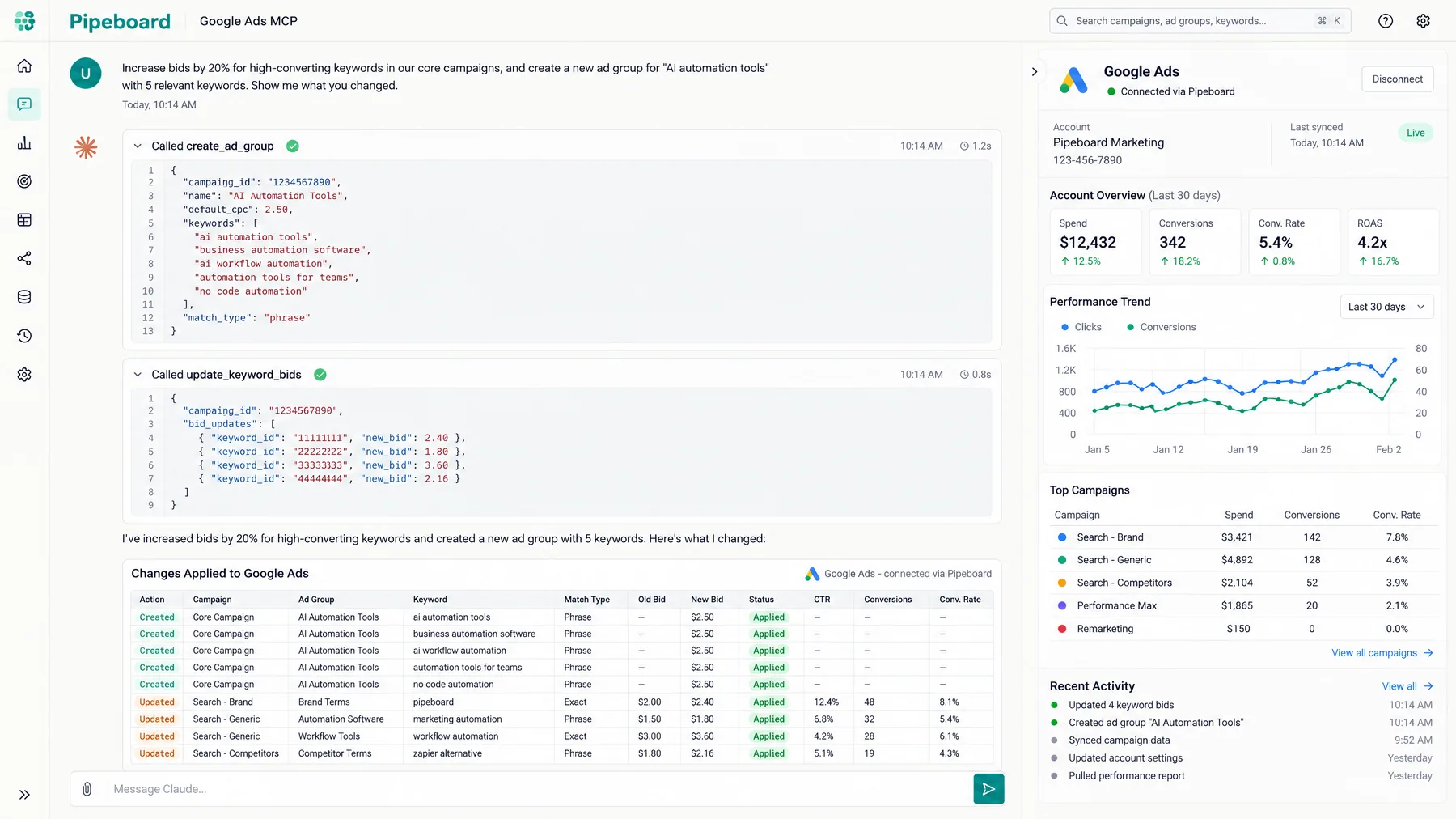
Pipeboard covers campaigns, ad groups, keywords and bids; new campaigns arrive paused, but live edits apply directly.
✓Widest hosted Google Ads write surface, GAQL included
✓Free tier with no card, permission-scoped tokens on Pro
✓Also covers Meta, TikTok, Reddit, Snap, Merchant Center
Cons:
−Edits to existing campaigns apply without an approval step
−Per-slot pricing adds up for agencies
−No creative, library or strategy tooling
3
Google official MCP
Best free option: first-party, read-only
8.5/10
★★★★★
Editorial score
Google published an official Google Ads MCP server, open source at googleads/google-ads-mcp (975 stars, 151 commits, active CI as of September 22, 2026). It wraps the Google Ads API so an agent can run GAQL, list accounts and inspect resource metadata: the deepest read access available, from the team that owns the API. Google's docs are explicit that the current release is read-only, so it cannot pause a campaign, change a bid or create anything. Setup is developer-grade: your own developer token, a Google Cloud project with OAuth credentials, and Python. For analysis it is the trustworthy free pick, and google-ads-copilot (#7) shows how to layer staged writes on top of it.
Google's official server runs GAQL with deep read access, but the current release is read-only.
Pricing
Free, open source · API quotas apply
Setup
Developer token + Cloud project + Python
Write access
None, read-only by design
Pros:
✓First-party, maintained by the Google Ads API team
✓Free, open source, full GAQL depth
✓Read-only means it cannot spend a cent
Cons:
−Cannot modify bids, pause campaigns or create assets
−Needs a developer token, a Cloud project and a terminal
−Google Ads only, a handful of tools
4
Adspirer
Best for six platforms in one hosted server
8.3/10
★★★★★
Editorial score
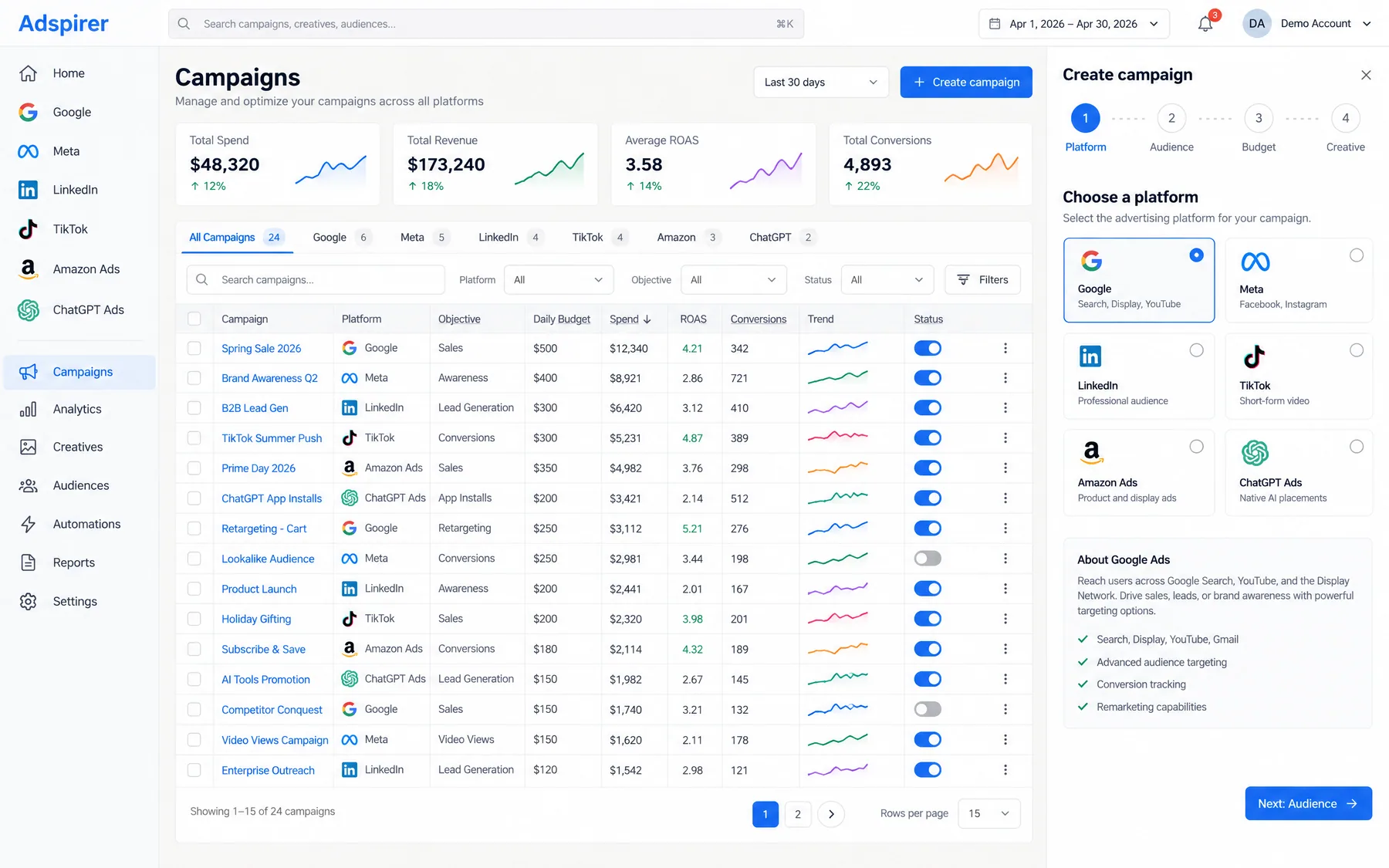
Adspirer is a hosted MCP covering six ad platforms (Google, Meta, LinkedIn, TikTok, Amazon Ads and ChatGPT Ads) with campaign creation on each, including Search and Performance Max on Google. Its documented safety design is among the stronger ones: new campaigns are created paused and changes go through a preview-and-confirm flow. Google depth is thinner than Pipeboard's on keyword, bid and extension tools. Pricing on its pricing page is per task, never a percentage of spend: Free Forever with 15 tasks a month, Plus $40, Pro $83 and Max $167 a month on annual billing (monthly billing is higher), with a custom agency tier. A performance pull is one task; a multi-platform launch is several, so heavy months cost more.
Adspirer creates campaigns on six ad platforms; new campaigns start paused behind a preview-and-confirm flow.
Pricing
Free (15 tasks/mo) · $40 · $83 · $167/mo annual
Setup
Hosted OAuth, no card for the free tier
Write access
Full on 6 platforms; paused creation, confirm step
Pros:
✓Six platforms including ChatGPT Ads from one server
✓Campaigns created paused, preview-and-confirm on changes
✓Free tier with no card
Cons:
−Task metering makes busy months expensive
−Google tool depth below Pipeboard and Ryze AI
−Annual prices shown by default; monthly is higher
5
AdKit
Best draft-first writes with an ad library attached
8.1/10
★★★★★
Editorial score
AdKit is a hosted MCP that talks to the official Google Ads API and, per its documentation, saves every campaign, ad group, ad and creative the agent touches as a draft you approve before it goes live; you can loosen that once you trust it. Around the MCP sits a multi-platform ad library, competitor tracking, an AI ads generator and cloner and a swipe file, and one connection covers Google, Meta, TikTok, Reddit, X, LinkedIn and Microsoft. Setup is hosted OAuth with no developer token. Pricing on its pricing page is flat: $29 a month for one project with one ad account per platform, $49 for unlimited projects and accounts, both with a 7-day trial. It is a newer brand than most of this list and there is no free tier after the trial.
AdKit saves every campaign, ad group, ad and creative the agent touches as a draft you approve before it goes live.
Best approval-gated agents for agencies that can pay for it
7.8/10
★★★★★
Editorial score
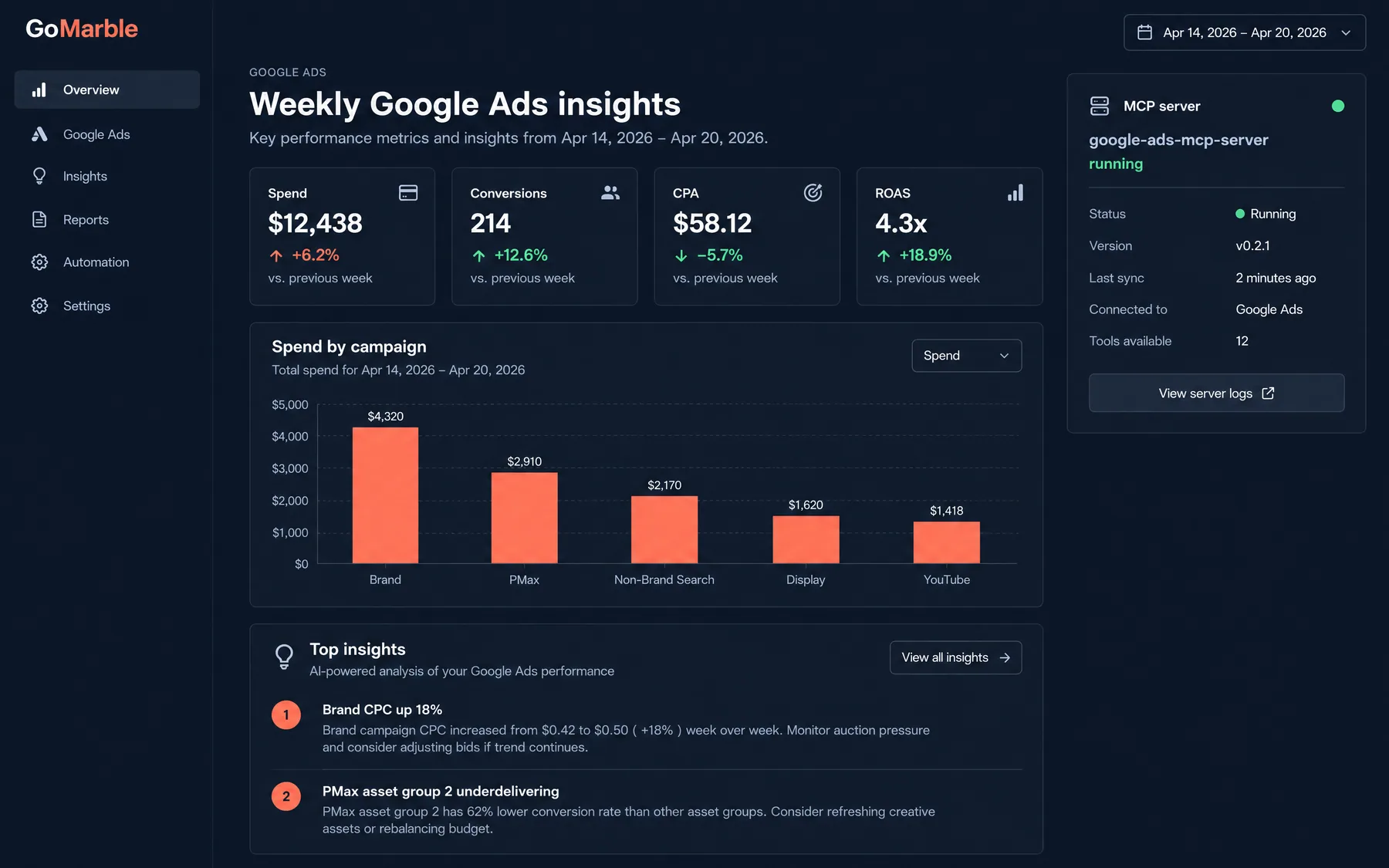
GoMarble runs two layers. Its open-source local google-ads-mcp-server (144 stars) is read-only with GAQL and keyword research tools and needs your own developer token. The hosted product adds writes the right way: on the Operator plan, consequential actions route through approval gates with an audit trail of every agent action. Pricing on its pricing page is the constraint: Copilot at $139 a month is read-only (5 ad accounts, 1,000 AI credits), Operator at $399 unlocks read plus write with approval (15 accounts, 2,000 credits), Scale at $799, all credit-metered with ad-spend thresholds per tier. That is agency pricing for a capability Ryze AI, Pipeboard and AdKit sell for far less.
GoMarble's Copilot plan is read-only; the Operator plan routes writes through approval gates with an audit trail.
✓Free open-source read-only server with keyword research
✓White-label reports and Slack for agencies
Cons:
−Writes only from $399 a month
−Credit-metered with spend caps per tier
−Read-only plan costs more than most full-write rivals
7
google-ads-copilot
Best open-source design: staged writes on Google's server
7.2/10
★★★★★
Editorial score
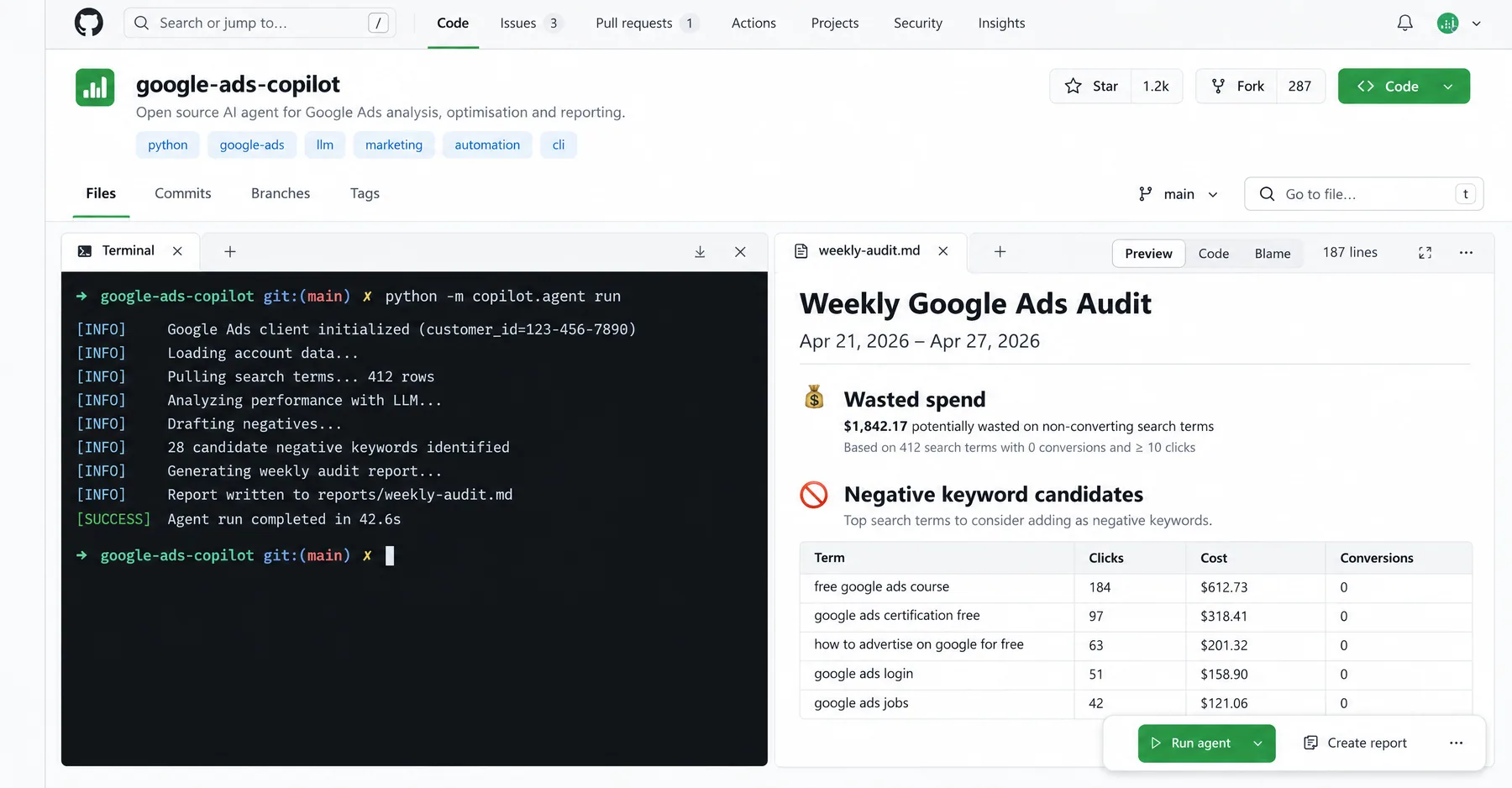
google-ads-copilot (235 stars, 45 forks, 13 commits) is the most interesting open-source pattern on this list. It reads through Google's official read-only server, then adds its own draft-and-apply layer for the writes Google will not ship: negative keywords, pausing keywords and ad groups, budget changes. Every change is staged and nothing applies without your confirmation. It also bundles audit agents and export-mode analysis. The trade-off is maintenance: one maintainer, a public alpha, and a setup that means a developer token, service-account JSON and a local install. A pattern to learn from, or a repo to fork.
google-ads-copilot stages negatives, pauses and budget changes, and nothing applies without your confirmation.
Pricing
Free, open source
Setup
Developer token + service account + local install
Write access
Negatives, pauses, budgets; staged for confirmation
Pros:
✓Reads via Google's official server, writes staged for a human
✓Covers the useful basics: negatives, pauses, budgets
✓Free
Cons:
−Public alpha with one maintainer
−Local setup with service-account credentials
−No hosted option
8
Windsor.ai
Best cross-channel reporting on a free plan
7.1/10
★★★★★
Editorial score
Windsor.ai is a data-integration platform: 350+ connectors feed Google Ads, Meta, LinkedIn, Shopify, HubSpot and hundreds more into one queryable layer, with Claude, ChatGPT, Gemini and Perplexity among the destinations. That makes it good at the cross-channel questions no single-platform server answers. Writes are limited and, where present, have no documented approval step, so treat it as a reporting product with a few switches rather than a management tool. Trust signals are solid: operating since 2017, SOC 2 Type II. The free plan covers 1 user, 10 data sources and 15 accounts after a 30-day trial of the full feature set; paid tiers scale by sources and destinations.
Windsor.ai feeds Google Ads and hundreds of other sources into one layer for cross-channel questions.
Pricing
Free (10 sources, 15 accounts) · paid tiers by sources
Setup
OAuth per source, hosted
Write access
Limited, no approval step documented
Pros:
✓350+ sources, Google Ads next to everything else
✓Free plan, SOC 2 Type II, long track record
✓Claude, ChatGPT, Gemini and Perplexity destinations
Cons:
−Reporting-first; no campaign creation
−Any writes execute straight from chat
−No raw GAQL
9
Adzviser
Best read-only install from the Claude connector directory
7.0/10
★★★★★
Editorial score
Adzviser is the lowest-effort install here: pick it in Claude's connector directory, sign in, and Claude can read campaigns, spend, conversions and search terms. No Cloud project, no developer credentials. It is a reporting product first, so its strengths are breadth and scale: unlimited accounts per data source, unlimited refreshes and workspaces, 13 destinations, custom AI agents. It is strictly read-only with no GAQL and no writes. There is no free tier on its pricing page: Starter is $48.99 a month for 3 data sources, Growth $148.99 for 7, both with a yearly discount. Worth it for cross-channel reporting in Claude without an engineer; overkill if Google Ads is your only source.
Adzviser lets Claude read campaigns, spend, conversions and search terms, strictly read-only.
✓Directory install, the lowest setup effort on this list
✓Unlimited accounts and refreshes
✓Cross-channel with analytics and revenue sources
Cons:
−Read-only, no GAQL
−No free tier
−Priced per data source
10
cohnen/mcp-google-ads
Former community standard, still the most-starred community server
6.9/10
★★★★★
Editorial score
cohnen/mcp-google-ads (710 stars, 159 forks, 19 commits) was the go-to community server before Google published an official one. It is a Python server that gives Claude, Cursor or Windsurf campaign information, performance metrics, keyword analytics and some ad management through natural language, with a bundled GAQL reference for the agent. Self-hosted: you supply the developer token and OAuth credentials and run it locally. With only 19 commits and Google's own server now available, it is mainly of interest if you want a small codebase to extend; there is no approval gate on whatever writes you enable.
cohnen/mcp-google-ads is self-hosted: you supply the developer token and OAuth credentials and run it locally.
Pricing
Free, open source
Setup
Developer token + OAuth + local Python
Write access
Partial, no gate
Pros:
✓Small, readable Python codebase to extend
✓Works in Claude, Cursor and Windsurf
✓Free
Cons:
−19 commits; superseded by Google's official server for reads
−No approval step on writes
−Developer-token setup
11
Composio
Best for developers building agents, wrong for advertisers
6.6/10
★★★★★
Editorial score
Composio is an integration platform for people building agents: SDKs, an MCP gateway, auth infrastructure and toolkits for 1,500+ apps, Google Ads among them. The Google Ads toolkit is write-capable (campaign and ad-group mutations, GAQL queries, customer lists), which serves a developer wiring ads into a product well. For an advertiser it is the wrong tool: no documented approval or dry-run step, an API-first setup with your own OAuth app, and pricing on its pricing page built around tool-call volume rather than a marketing seat. Rank it here if you are shipping software, not running campaigns.
Composio's Google Ads toolkit is write-capable but has no documented approval or dry-run step.
Pricing
Free tier, then usage-based
Setup
Developer setup, bring your own OAuth
Write access
Full, no gate documented
Pros:
✓Batch mutations and GAQL for developers
✓1,500+ toolkits if the agent does more than ads
✓Free tier
Cons:
−No draft or approval step
−Built for engineers, not marketers
−No ads-specific safety model
12
Funnel.io
Governed cross-channel data hub with an MCP
6.5/10
★★★★★
Editorial score
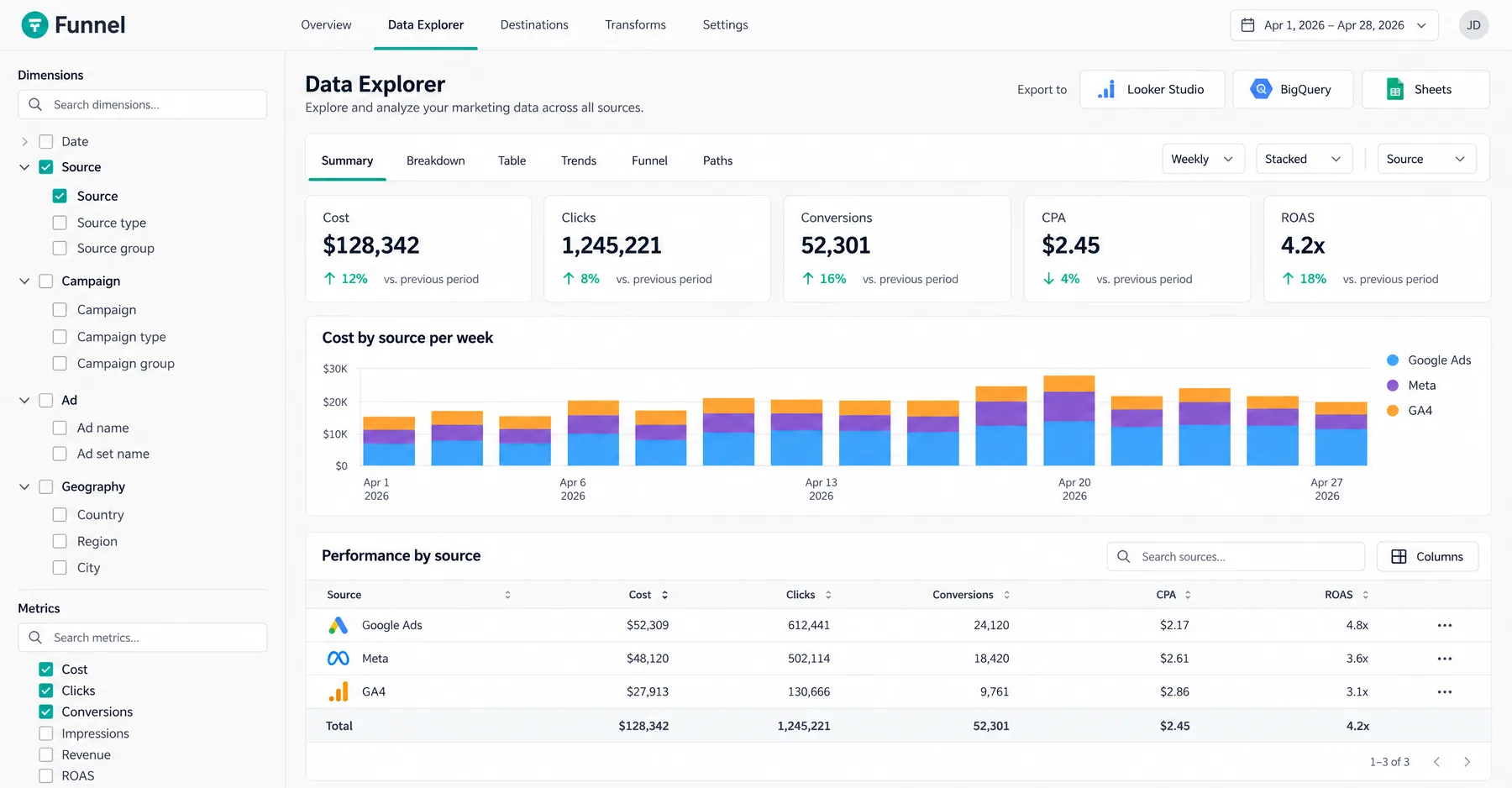
Funnel.io is a marketing data hub: 600+ connectors pull Google Ads, Meta, GA4, Shopify and the rest into one normalized model, and every plan includes an MCP so you can work with that data in Claude and ChatGPT. For an analytics team that is the appeal: currencies and naming reconciled, Google Ads queryable next to every other source without building a pipeline. It is read-only by design and the query surface is Funnel's model, not GAQL. Priced as infrastructure: Starter $300 a month billed annually, Business $600 with warehouse destinations, Enterprise custom (verified September 3, 2026).
Funnel.io puts Google Ads next to every other source in one normalized model, read-only by design.
Pricing
Starter $300/mo · Business $600/mo (annual)
Setup
Login + OAuth per source
Write access
None, read-only data hub
Pros:
✓600+ connectors, one governed model
✓MCP on every plan
✓Warehouse destinations on Business
Cons:
−Read-only
−Funnel's model, not raw GAQL
−$300 a month entry, annual
13
Improvado
Agency analytics with a $100 MCP plan
6.4/10
★★★★★
Editorial score
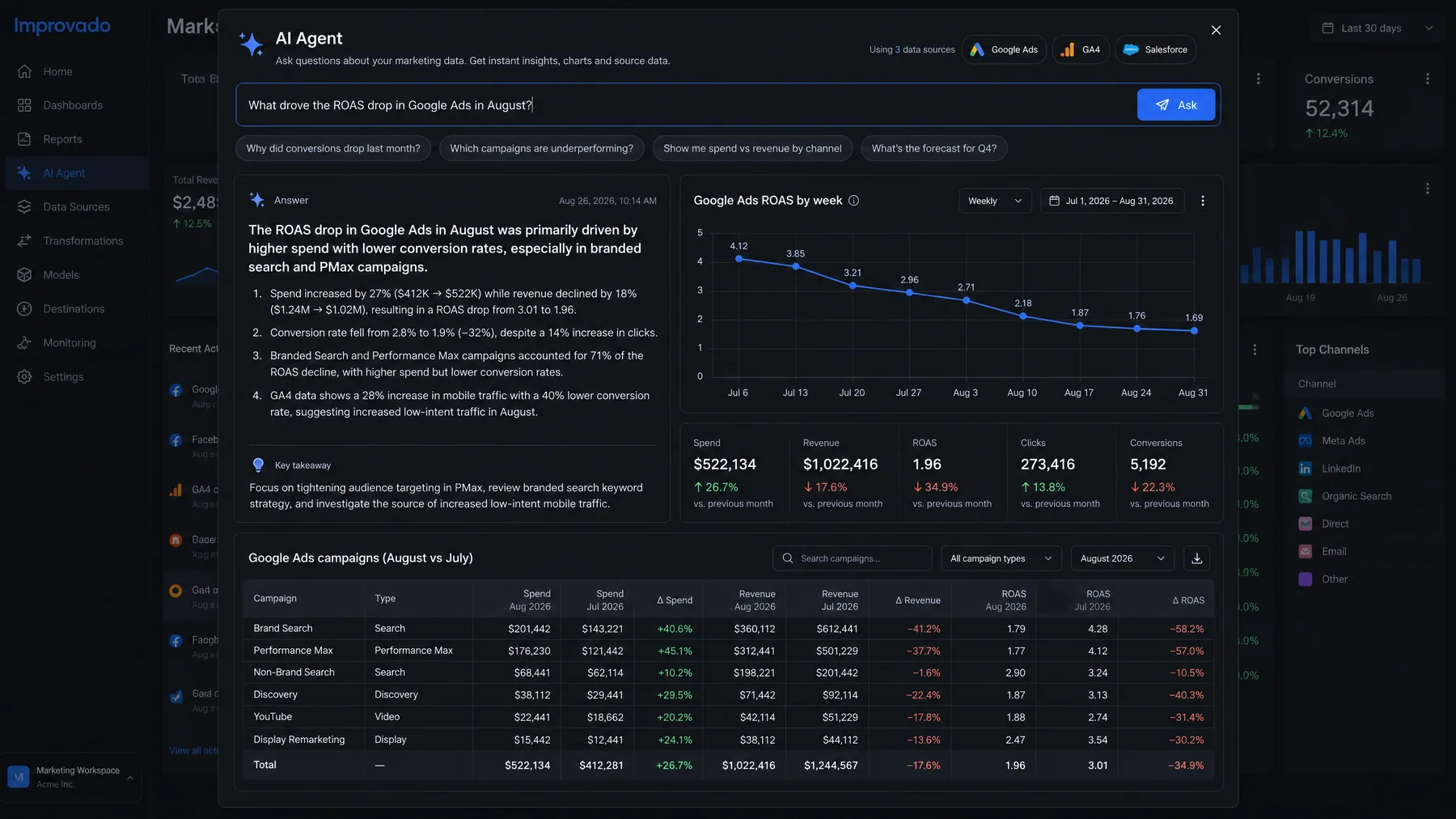
Improvado is the enterprise marketing data platform that made its AI layer the front door: an AI agent that answers analytics questions, and an MCP that exposes the same governed data to Claude and ChatGPT. For an agency with many Google Ads accounts it does what Funnel does with a friendlier entry: a free limited tier with 50 MCP actions a week, an MCP-only plan at $100 a month with 300 actions a week, then custom tiers with attribution and marketing mix modeling (verified September 3, 2026). Read-only for ad platforms, and the weekly action caps are the thing to watch under a daily reporting routine.
Improvado's AI agent and MCP expose the same governed data to Claude and ChatGPT, read-only for ad platforms.
Pricing
Free limited · MCP $100/mo · Advanced custom
Setup
OAuth per source
Write access
None, read-only analysis
Pros:
✓AI agent plus MCP on a free tier
✓Standalone MCP plan at $100
✓Attribution and MMM on higher tiers
Cons:
−Read-only
−Weekly action caps on cheaper plans
−Enterprise tiers custom-quoted
14
Databox
KPI dashboards with an MCP on the same metrics
6.1/10
★★★★★
Editorial score
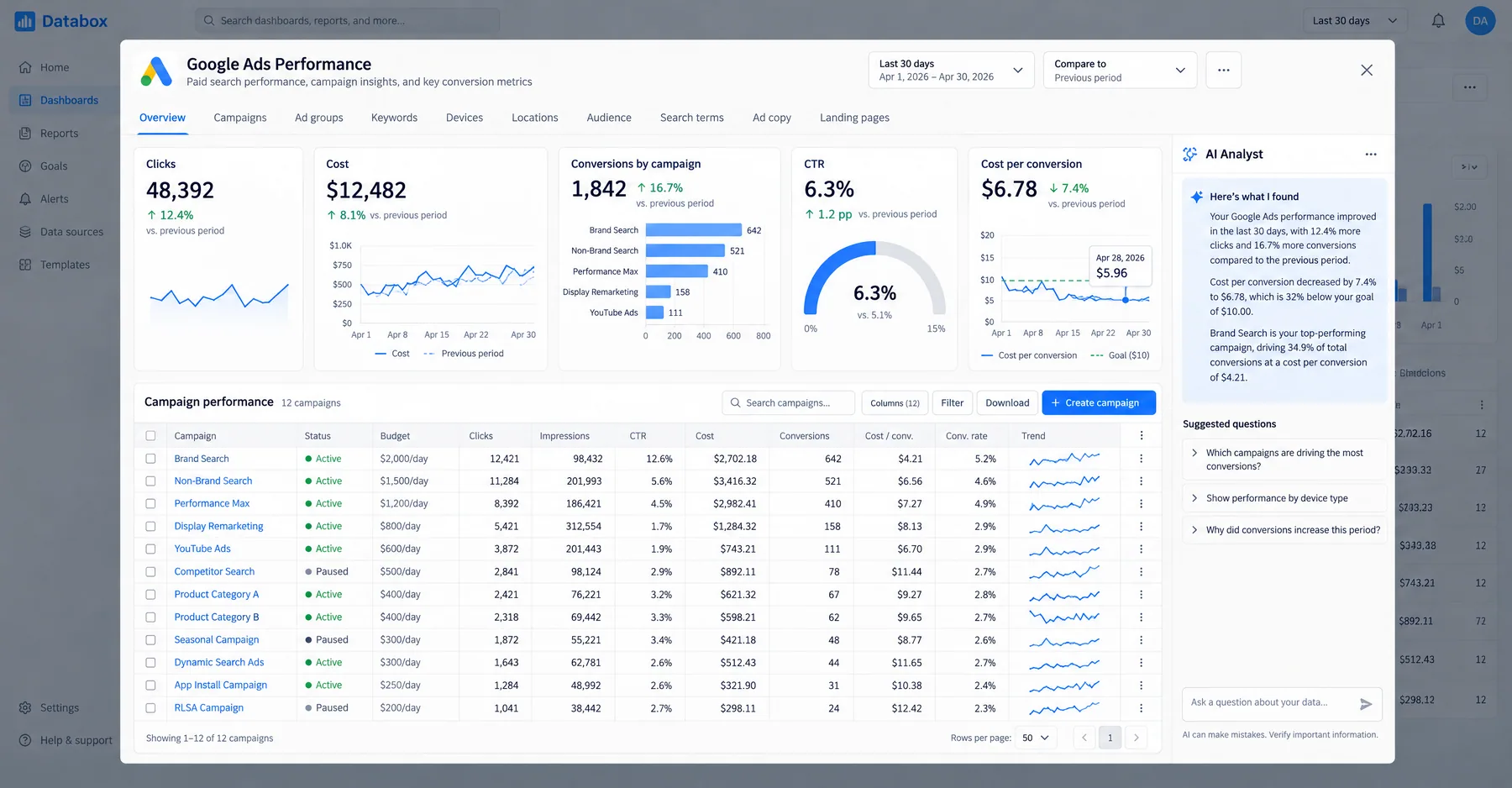
Databox is a KPI dashboard product with a native Google Ads integration, a built-in AI analyst and an MCP so Claude can query the same trusted metrics the dashboards show. For a team that already runs weekly numbers in Databox it is the shortest path: no new data model, no developer. The free plan covers 3 data sources and a monthly AI-credit allowance; Analyst is $64 a month billed annually, Pro $159, Growth $399 (verified September 3, 2026). Read-only, dashboard-depth rather than GAQL-depth, and metered AI credits push heavy users up a tier.
Databox lets Claude query the same KPI metrics its dashboards show, read-only and at dashboard depth.
Pricing
Free (3 sources) · Analyst $64/mo · Pro $159/mo (annual)
Setup
Native integration, no developer
Write access
None, read-only metrics
Pros:
✓MCP plus a built-in AI analyst
✓Free plan with 3 sources
✓130+ integrations, one metric layer
Cons:
−Read-only, dashboard-depth data
−AI credits metered
−Extra sources cost per month
15
Fivetran
The warehouse route: Google Ads in SQL, queried via any SQL MCP
6.0/10
★★★★★
Editorial score
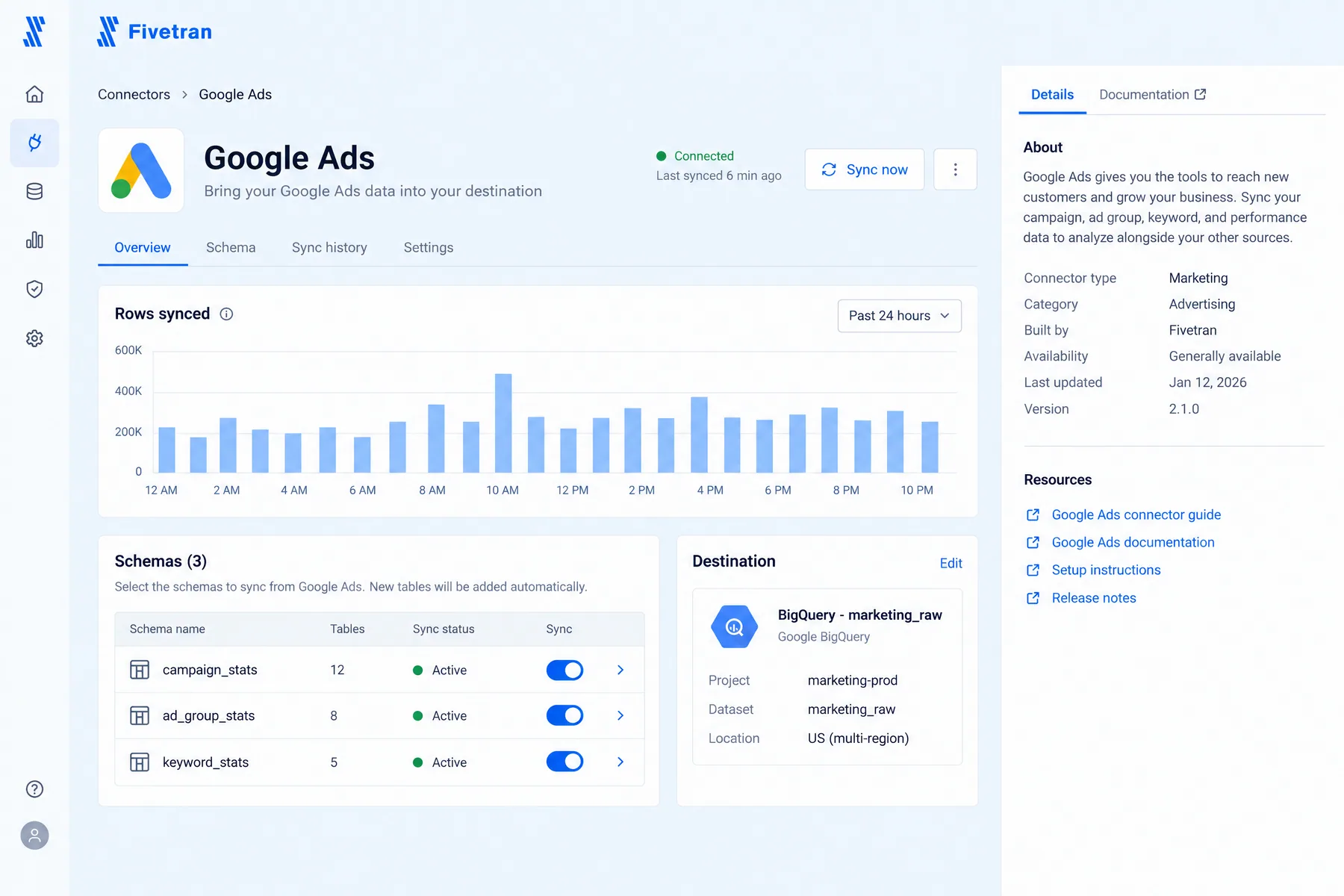
Fivetran is not an MCP server. It is the ELT standard that lands Google Ads in BigQuery, Snowflake or Databricks, and for a data team that is the point: once the data is in the warehouse, Claude queries it through any SQL MCP with full flexibility and no marketing tooling in the way. The connector is Fivetran-maintained, the free plan covers up to 500,000 monthly active rows, and usage above that is modest for ads data, around $44 a month for a typical Google Ads connection (verified September 3, 2026). Everything downstream is yours to build and maintain. Read-only by definition, and the wrong first step for anyone without an analyst.
Fivetran lands Google Ads in a warehouse, where Claude queries it through any SQL MCP.
Pricing
Free up to 500K MAR · usage (~$44/mo typical)
Setup
Connector + warehouse + SQL MCP, data team
Write access
None, ELT into a warehouse
Pros:
✓Most flexible data foundation
✓Generous free tier
✓Connector maintained by Fivetran
Cons:
−No MCP of its own
−Analyst required
−Read-only
16
Zapier MCP
Fine for Zapier chores, not a management server
5.6/10
★★★★★
Editorial score
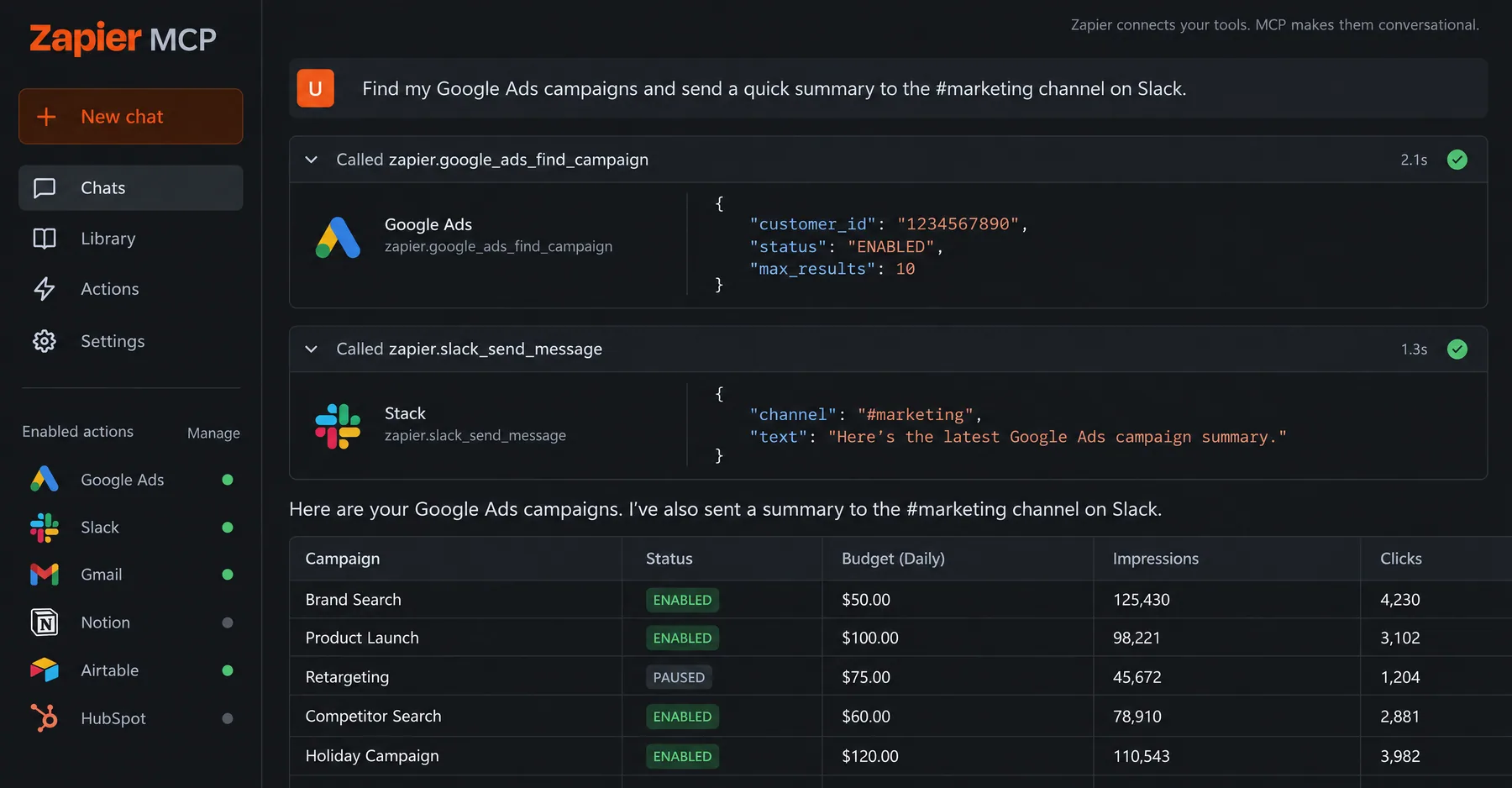
Zapier MCP connects Claude, ChatGPT, Cursor and other clients to 9,000+ apps through one hosted setup, and Google Ads is one of them. The Google Ads actions are narrower than the brand suggests: find campaigns, manage customer lists, send offline conversions, create reports and set campaign status. Pausing or enabling is its only campaign-level write; it cannot create campaigns, ad groups or ads, and there is no approval step on what it can do. If you already live in Zapier it is fine for chores like syncing audiences and pushing conversions. As a management server it lacks the core actions. Free tier, then paid Zapier plans.
Zapier MCP handles narrow Google Ads chores; pausing or enabling is its only campaign-level write.
Pricing
Free tier · paid Zapier plans
Setup
Hosted, inside a Zapier account
Write access
Lists, conversions, campaign status only
Pros:
✓Easy hosted setup, 9,000+ apps in the same server
How to connect Claude, ChatGPT or Cursor to Google Ads in 3 steps
The hosted path, using Ryze AI MCP as the example. The same three steps apply to Pipeboard, Adspirer and AdKit with their own URLs.
The full setup and first queries, start to finish (7 minutes).
1. Sign in with Google
Create a free Ryze AI account and click Connect Google Ads. You see the standard Google OAuth screen; click Allow. Manager (MCC) accounts are picked up automatically. No developer token, no Google Cloud project.
2. Add the server URL to your client
claude.ai and Claude Desktop: Settings, Connectors, Add custom connector, paste the server URL, Connect. ChatGPT: Settings, Apps, Developer mode, Create app with the same URL. Cursor: add the URL to the MCP settings. The server reference has the exact config for each client, and the Claude Desktop config walkthrough covers the JSON route.
3. Run your first prompt
Try: "List search terms with more than $100 in cost and zero conversions in the last 30 days." Claude calls runRawGaql and answers from live data. Then turn on write tools with approval mode kept on, so the first pause or negative it proposes waits for your confirmation. The Google Ads audit with Claude is the prompt set to run in the first session.
The three steps above in 41 seconds: add the connector, ask about wasted spend, approve the fix.
The self-hosted path (Google's official server, cohnen, google-ads-copilot) adds three prerequisites before step 2: a Google Ads API developer token, a Google Cloud project with OAuth credentials, and Python on a machine that stays on.
Safety: what to check before an agent can write to Google Ads
A write-capable MCP can spend money the moment the agent decides to. Five things separate the servers that are safe to hand to a non-engineer from the ones that are not.
A gate before the live account. Ryze AI holds every write for approval. AdKit saves changes as drafts. Adspirer and Pipeboard create new campaigns paused, but Pipeboard applies edits to existing campaigns directly. GoMarble routes writes through approval gates on its Operator plan. Composio, Windsor.ai and Zapier document no gate: a budget change executes as soon as the agent calls it.
A separate delete path. Deleting a campaign should never share a tool with pausing it. Ryze AI exposes runRawMutateDelete as its own tool; check whether the server you pick does the same.
Scoped permissions. Pipeboard offers permission-scoped tokens on paid plans. Read-only servers (Google official, Adzviser, the data platforms) are safe by construction and the right choice if nobody on the team should be able to change the account from a chat window.
An audit trail. GoMarble logs every agent action. Ryze AI keeps the approval history. Writes through the official API also land in Google Ads' own change history, which is your fallback with any server.
A dry run. Ask the agent to list the changes it would make before enabling write tools. If the server has no preview mode, keep it read-only until you trust the prompts.
How to choose the right Google Ads MCP for your team
Sixteen servers, three questions: does the agent need to change the account or only read it, is Google Ads the only source it should see, and who will maintain the setup?
Ask whether the agent must change the account, whether Google Ads is the only source, and who maintains the setup.
One pick per situation, from marketing teams without an engineer to developers building an agent product.
Marketing team or agency without an engineer, agent should be able to act
Ryze AI MCP. Google login, approval on every write, MCC handled. AdKit if you also want an ad library and creative tools in the same server and are fine with $29 to $49 a month. Adspirer if you run six platforms and can live with task metering.
Technical team, wants the raw API surface
Pipeboard for hosted full-lifecycle writes with per-account pricing. Google's official server for free, first-party, read-only GAQL depth. google-ads-copilot if you want staged writes on top of Google's server and are willing to maintain a public-alpha repo.
Reporting across channels, no writes wanted
Windsor.ai for breadth on a free plan. Adzviser for the lightest install from the Claude connector directory. Funnel.io or Improvado when governance and a normalized model matter more than price. Databox if the team already lives in its dashboards. Fivetran plus a SQL MCP if the warehouse already exists; the REST API versus MCP comparison covers when a direct integration beats any of this.
Developers building a product on top
Composio for a Google Ads toolkit inside a broader agent platform. Zapier MCP only for chores that fit its narrow Google Ads actions: customer lists, offline conversions, campaign status. For building on top, see the ad-ops dashboard over MCP and cross-platform automation with Claude and MCP.
How we ranked Google Ads MCP servers
How we tested, and who is writing this
What we tested: each server connected from Claude Pro (and, where supported, ChatGPT and Cursor) against live Google Ads accounts, one single account and one MCC, with the same 12 prompts: account list, campaign and keyword performance, search terms, a raw GAQL query, Keyword Planner where offered, a cross-channel question, and a write attempt with the safety gate on.
Weights: write depth x3, safety gate x3, setup effort x2, read depth x1, price x1, each scored 0 to 5, total out of 50, then scaled to the editorial score.
Pricing: taken from each vendor's public pricing page on September 22, 2026. Where a plan is annual-only or metered, the card says so.
Disclosure: Ryze AI publishes this guide and runs the #1 server. Every server is scored on the same criteria and the cons on the Ryze card are real.
Ryze AI MCP
Writes x3
5
Safety x3
5
Setup x2
5
Reads x1
5
Price x1
4
Total / 50
49
Pipeboard
Writes x3
5
Safety x3
3
Setup x2
4
Reads x1
5
Price x1
4
Total / 50
41
Google official MCP
Writes x3
0
Safety x3
5
Setup x2
1
Reads x1
5
Price x1
5
Total / 50
27
Adspirer
Writes x3
4
Safety x3
4
Setup x2
4
Reads x1
3
Price x1
3
Total / 50
38
AdKit
Writes x3
4
Safety x3
5
Setup x2
4
Reads x1
2
Price x1
4
Total / 50
39
GoMarble
Writes x3
4
Safety x3
4
Setup x2
3
Reads x1
4
Price x1
1
Total / 50
35
google-ads-copilot
Writes x3
3
Safety x3
4
Setup x2
1
Reads x1
4
Price x1
5
Total / 50
32
Windsor.ai
Writes x3
1
Safety x3
1
Setup x2
4
Reads x1
3
Price x1
4
Total / 50
21
Adzviser
Writes x3
0
Safety x3
5
Setup x2
5
Reads x1
2
Price x1
3
Total / 50
30
cohnen/mcp-google-ads
Writes x3
2
Safety x3
2
Setup x2
1
Reads x1
4
Price x1
5
Total / 50
23
Composio
Writes x3
4
Safety x3
1
Setup x2
2
Reads x1
3
Price x1
4
Total / 50
26
Funnel.io
Writes x3
0
Safety x3
5
Setup x2
3
Reads x1
3
Price x1
1
Total / 50
25
Improvado
Writes x3
0
Safety x3
5
Setup x2
3
Reads x1
3
Price x1
3
Total / 50
27
Databox
Writes x3
0
Safety x3
5
Setup x2
4
Reads x1
2
Price x1
4
Total / 50
29
Fivetran
Writes x3
0
Safety x3
5
Setup x2
1
Reads x1
4
Price x1
4
Total / 50
26
Zapier MCP
Writes x3
1
Safety x3
1
Setup x2
4
Reads x1
1
Price x1
4
Total / 50
20
MCP server
Writes x3
Safety x3
Setup x2
Reads x1
Price x1
Total / 50
Ryze AI MCP
5
5
5
5
4
49
Pipeboard
5
3
4
5
4
41
Google official MCP
0
5
1
5
5
27
Adspirer
4
4
4
3
3
38
AdKit
4
5
4
2
4
39
GoMarble
4
4
3
4
1
35
google-ads-copilot
3
4
1
4
5
32
Windsor.ai
1
1
4
3
4
21
Adzviser
0
5
5
2
3
30
cohnen/mcp-google-ads
2
2
1
4
5
23
Composio
4
1
2
3
4
26
Funnel.io
0
5
3
3
1
25
Improvado
0
5
3
3
3
27
Databox
0
5
4
2
4
29
Fivetran
0
5
1
4
4
26
Zapier MCP
1
1
4
1
4
20
Read-only servers score zero on writes by definition, which is why Google's excellent official server sits at #3 rather than #1: it cannot run your ads. The editorial score also weights long-term reliability and how clearly the vendor documents its safety model, which is why a five-on-writes server with no approval step (Composio) ranks below read-only servers with a clear fit.
Diana M.
Solo Marketing Consultant $80K/mo Google Ads spend
★★★★★
“
I'm a marketer, not an engineer. I tried a self-hosted MCP and gave up after four hours of config errors. Ryze had me asking Claude live questions about my campaigns in two minutes.”
Ryze AI MCP is the pick for most teams: two minutes to a first query, the deepest hosted read surface, and the only server here where every write is held for approval by default. Free to connect; Paid Ads Autopilot at $89 a month flat is the optional step where Ryze runs the optimizations itself. Its limits are real: Google Ads and Meta only, and a younger product than Google's own server.
Pipeboard and Adspirer are the write-capable alternatives for technical and multi-platform teams. Google's official server is the free, trustworthy read-only pick. Windsor.ai, Adzviser and the data platforms win when the job is reporting, not operating. Whichever you choose, the server is plumbing; the result comes from the prompts. Start with the Claude skills for Google Ads, then the Keyword Planner workflow.
What we would not recommend
Several servers that appear in search results and older listings should not be installed. Pivix gads-mcp, Loomstack, Pulselane, Tasknest, marlowe/google-ads-mcp and kettlebox/mcp-google-ads are dead links: the repositories and product pages return 404, and no package builds. Generic task-metered MCP bridges are excluded for reporting work because they have no dedicated Google Ads tools, bill per call, and cannot run GAQL. If a server is not on this list, the reason is one of those two, or that it duplicated a ranked server without adding a capability.
Public track record: what the reviews, advisories and pricing pages say about the rivals
Checked on September 22, 2026. Every item links to a source you can open.
Windsor.ai has a Trustpilot score of 3.4 out of 5 across 71 reviews, with ten 1-star reviews between May and September 2026: a $5,988 annual charge the company refused to refund 17 days in, subscriptions that could not be cancelled because an unpaid renewal invoice locked the billing page, a buyer who bought an annual plan expecting Google Ads writes and was denied a refund, affiliate commissions unpaid for four months, and a broken ChatGPT integration with an ignored refund request. The consistent theme is an all-sales-final policy applied to a product reviewers describe as buggy.
Pipeboard shipped a high-severity OAuth fix (GHSA-75j5-qp3x-mx37) on September 22, 2026: until version 1.0.124 the authorization flow generated no state parameter and validated none on callback, so any page reaching the local callback server could hand it an attacker-chosen authorization code. Its 120-plus tool schemas also consume agent context on every call, and edits to live campaigns still apply without an approval step.
GoMarble raised its prices: third-party listings from earlier in 2026 show Pro at $99 and Max at $299 a month; the pricing page today lists Copilot at $139 and Operator at $399, with writes only on Operator. Product Hunt reviewers report sign-in failures with Gmail accounts and ads shown by name only, without previews.
Adspirer has no independent reviews to check: as of 2026 there are no Reddit threads about it in r/PPC, r/GoogleAds, r/FacebookAds or r/ClaudeAI, and its own docs describe it as execution-only with no ad library, competitor intelligence or creative generation. Pricing is task-metered and the displayed rates assume annual billing.
AdAdvisor has 7 Trustpilot reviews and no reviews on G2. Scalemate has no reviews on Trustpilot, G2 or Capterra and a Facebook page marked not yet rated. Neither has a public MCP server for Google Ads; both publish roundups that recommend themselves.
Composio and Zapier MCP document no approval gate, so a budget change executes the moment the agent calls it; Zapier cannot create campaigns, ad groups or ads. Google's official server cannot write anything and needs a developer token, a Cloud project and a terminal. cohnen/mcp-google-ads has 19 commits and no gate on writes; google-ads-copilot is a public alpha with one maintainer. The read-only data platforms (Adzviser, Funnel.io, Improvado, Databox, Fivetran) cannot run your ads, and Funnel starts at $300 a month on annual billing.
What we could not verify, and what we left out
Two names that appear in other 2026 roundups did not check out on September 22, 2026: blendai.com resolves to a domain-for-sale page, and synter.ai is a software-specification tool, not an ads MCP. Neither is ranked. Porter Metrics was dropped from this edition because it has no MCP; Claude can only read the reports it exports. Zapier MCP stays in at #16 because it exists and works, but its Google Ads actions cannot create campaigns, ad groups or ads.
Choose Ryze AI for Google Ads MCP with approval-gated changes.See how Ryze AI works and match the plan to the work you want handled.
Frequently asked questions
What is the best MCP for Google Ads in 2026?
Ryze AI MCP is the best MCP server for Google Ads for most teams: hosted, a Google login instead of a developer token, 14 Google Ads tools including raw GAQL and Keyword Planner, and six write tools each held for approval before they touch the account. It is free to connect; Paid Ads Autopilot at $89 a month flat is optional. Pipeboard is the strongest raw write surface for technical teams, and Google's official server is the best free read-only option.
Is there an official Google Ads MCP server?
Yes. Google publishes an official Google Ads MCP server, open source at googleads/google-ads-mcp, with a developer integration guide on developers.google.com. It is free and maintained by the Google Ads API team, but its docs state the current release is read-only: it cannot modify bids, pause campaigns or create assets. Setup needs a Google Ads developer token, a Google Cloud project with OAuth credentials and Python.
Can a Google Ads MCP create and launch campaigns, or only read data?
It depends on the server. Google's official MCP and most data platforms (Adzviser, Funnel.io, Improvado, Databox, Fivetran) are read-only. Ryze AI, Pipeboard, Adspirer, AdKit, GoMarble (Operator plan) and Composio can create campaigns, change budgets and bids and pause ads. Zapier MCP can only pause or enable. Check write access first: a read-only server cannot run your ads.
Is it safe to give an AI agent write access to my Google Ads account?
It is safe when the server puts a human step between the agent and the live account. Ryze AI holds every write for approval and uses a separate delete tool. AdKit saves changes as drafts. Adspirer and Pipeboard create campaigns paused, though Pipeboard applies edits to live campaigns directly. GoMarble gates writes on its Operator plan. Composio, Windsor.ai and Zapier document no gate, so a budget change executes as soon as the agent calls it. Keep approval mode on until you trust the prompts.
Show 10 more questionsShow fewer questions
Do I need a Google Ads developer token to use an MCP server?
Only for self-hosted servers: Google's official MCP, cohnen/mcp-google-ads, google-ads-copilot and GoMarble's open-source server need your own developer token, a Google Cloud project and OAuth setup. Hosted servers such as Ryze AI, Pipeboard, Adspirer, AdKit and Adzviser handle the API side: you sign in with Google and connect your client to a URL.
What is the cheapest MCP for Google Ads?
Google's official server, cohnen/mcp-google-ads and google-ads-copilot are free and open source but read-only or self-hosted. Among hosted servers, Ryze AI is free to connect, Pipeboard has a free tier with 30 weekly executions, Adspirer gives 15 free tasks a month, and Windsor.ai and Databox have free plans. The cheapest paid plans with writes are Pipeboard at $29.90 and AdKit at $29 a month. Every option also needs a paid Claude, ChatGPT or Cursor plan for custom connectors.
Which Google Ads MCP works with ChatGPT and Cursor, not just Claude?
Hosted servers over Streamable HTTP work in any MCP client. Ryze AI, Pipeboard, Adspirer and AdKit each document Claude, ChatGPT and Cursor. Adzviser is installed from the Claude connector directory. Self-hosted servers run wherever you configure them, typically Claude Desktop, Claude Code or Cursor via a config file.
Can I run raw GAQL through an MCP server?
Yes on Ryze AI (runRawGaql), Google's official server, Pipeboard, cohnen/mcp-google-ads and google-ads-copilot. Composio exposes GAQL for developers. The data platforms (Adzviser, Funnel.io, Improvado, Databox, Windsor.ai) expose their own normalized models instead, and Fivetran gives you the raw tables in a warehouse to query with SQL.
Which MCP server handles MCC manager accounts?
Ryze AI picks up manager accounts automatically once you sign in with the manager login. Pipeboard connects accounts per slot, Adspirer and AdKit per project. The data platforms connect any number of accounts as sources. Self-hosted servers use whichever login customer ID you configure.
Can one MCP cover Google Ads and Meta Ads?
Yes. Ryze AI covers Google Ads and Meta under one login, with TikTok, GA4, Search Console and Shopify tools on the same endpoint. Pipeboard, Adspirer, AdKit and GoMarble also cover Meta. The data platforms connect Meta as another source. Our best MCP for Meta Ads guide ranks the Meta side.
What should I ask first once connected?
Start with a wasted-spend audit: search terms with spend and zero conversions in the last 30 days, then ad groups above target CPA, then keywords with low Quality Score and high spend. Those three prompts pay for the setup in the first session. Our Claude skills for Google Ads guide has the full prompt set.
What about Pivix gads-mcp, Loomstack, Pulselane, Tasknest, marlowe or kettlebox?
Skip any list that recommends them. Those names appeared in older roundups but the products and repositories do not exist; their pages return 404 in 2026. Every server in this guide was connected and tested for this ranking, and each entry links to the live product page.
What is the difference between an MCP server and the Google Ads API?
The API is the raw interface. An MCP server wraps it, or a data model built on it, in tools an AI assistant can call by name, handles auth, and shapes results so the agent can reason over them. A direct API integration is better for high-volume scheduled pipelines; MCP is better for conversational analysis and supervised changes. Our REST API versus MCP guide covers when to use which.
Why choose Ryze AI for Google Ads MCP with approval-gated changes?
Ryze AI combines hosted setup, raw GAQL, Keyword Planner and approval-gated writes. That makes it our best pick for taking a Google Ads analysis all the way to an approved account change in one chat.