How to Connect Shopify with Claude — Complete 2026 Integration Guide
Connect your Shopify store to Claude in under 15 minutes using MCP for real-time store data — products, orders, customers, and collections. This guide covers the setup, store authorization, 12 automation workflows, and troubleshooting to cut routine store-management time by up to 80%.
Built by our community of 2,000 marketers
Free Shopify prompts and workflows for Claude
Copy-paste templates for product SEO, CRO diagnosis, and weekly store reports.
Clients we work withClients we
work with







Official Claude connector
Connect Claude to your Shopify data
Connect 50+ marketing tools, plus free skills and a Claude autonomous marketing agent.
Connect in 1 click





Connecting Shopify with Claude changes how you run the store by giving you instant access to live store data without manual exports or dashboard switching. Instead of pulling reports from the Shopify admin, exporting CSVs, and building decks, you ask Claude one question and get structured analysis in under 30 seconds. It enables real-time merchandising decisions, automated reporting, and data-driven calls at scale.
The average store operator spends 12-15 hours per week on routine work: writing and fixing product copy, auditing collection SEO, digging into conversion and cart data, checking margins, and building reports. When you connect Shopify with Claude, that shrinks to 2-3 hours weekly. Claude can scan a full catalog in seconds, surface the thin product pages and margin leaks, and generate executive-ready reports that would take hours to compile by hand.
Store complexity has compounded: larger catalogs, more variants, multiple sales channels, subscription and bundle logic, and SEO that never sits still. Manual management no longer scales. Connect Shopify with Claude to handle that complexity on demand while you keep strategic oversight. This guide covers everything: account setup, MCP configuration, 12 automation workflows, troubleshooting, and how it compares to autonomous platforms like Ryze AI.
Why connect Shopify with Claude?
Connecting Shopify with Claude changes how you run the store by giving you instant access to live store data without manual exports or dashboard switching. Instead of pulling reports from the Shopify admin, exporting CSVs, and building decks, you ask Claude one question and get structured analysis in under 30 seconds. It enables real-time merchandising decisions, automated reporting, and data-driven calls at scale.
The average store operator spends 12-15 hours per week on routine work: writing and fixing product copy, auditing collection SEO, digging into conversion and cart data, checking margins, and building reports. When you connect Shopify with Claude, that shrinks to 2-3 hours weekly. Claude can scan a full catalog in seconds, surface the thin product pages and margin leaks, and generate executive-ready reports that would take hours to compile by hand.
Store complexity has compounded: larger catalogs, more variants, multiple sales channels, subscription and bundle logic, and SEO that never sits still. Manual management no longer scales. Connect Shopify with Claude to handle that complexity on demand while you keep strategic oversight. This guide covers everything: account setup, MCP configuration, 12 automation workflows, troubleshooting, and how it compares to autonomous platforms like Ryze AI.
What are the 3 ways to connect Claude to Shopify?
There are three primary methods to establish the connection between Claude and Shopify, each offering different levels of automation, technical complexity, and data freshness. Your choice depends on technical expertise, frequency of use, and whether you need real-time data access or can work with periodic exports.
| Method | Setup Time | Technical Level | Data Freshness | Best For |
|---|---|---|---|---|
| Ryze MCP Connector | Under 5 minutes | Beginner | Real-time API | Most marketers |
| Shopify API + MCP | 15-30 minutes | Advanced | Real-time API | Developers/Agencies |
| CSV Export Method | 2 minutes per session | Beginner | Snapshot only | One-time analysis |
Method 1: Ryze MCP Connector provides managed authentication and simplified setup. Sign up at get-ryze.ai/mcp, install the Ryze app on your Shopify store, and receive a pre-configured MCP server endpoint. This method handles OAuth token refresh, API rate limiting, and data formatting automatically. Most marketers choose this approach for reliability and ease of use.
Method 2: Shopify API + Self-Hosted MCP gives full control but requires technical setup. You create a custom app in your Shopify admin, generate Admin API credentials, and configure a local MCP server. This method offers complete customization and no third-party dependencies but requires ongoing maintenance and troubleshooting.
Method 3: CSV Export works without API integration by manually exporting data from Shopify admin and uploading to Claude Projects. While simple, this method provides only historical snapshots and requires re-export for updated data. Best suited for quarterly reviews or one-time competitive analysis.
Why this matters
Tools like Ryze AI automate this process — adjusting bids, reallocating budget, and flagging underperformers 24/7 without manual intervention, working from live store data via a direct Shopify integration. Ryze AI clients see an average 3.8x ROAS within 6 weeks of onboarding.
How do you connect Shopify with Claude?
This complete walkthrough uses the Ryze MCP Connector method for fastest setup. You need Claude Pro ($20/month), admin access to your Shopify store, and 10-15 minutes. The process involves account creation, store authorization, MCP server configuration, and connection testing.
Step 01
Create Ryze AI Account
Navigate to get-ryze.ai/mcp and click "Sign Up Free." Complete registration with your email address and business information. The MCP connector is included in the 7-day free trial with no credit card required. You'll receive a welcome email with your API credentials within 2 minutes.
Step 02
Connect Shopify Account
In your Ryze dashboard, go to "Integrations" → "Shopify" → "Connect store." Click "Install on Shopify" and approve the app from your Shopify admin (Settings → Apps and sales channels). Grant read access to products, orders, customers, collections, and online-store content. If you run more than one store, connect the primary one first and add the rest later through the same flow.
Important: You need to be the store owner or a staff account with permission to install apps. The connector requests read scopes by default — grant write scopes only if you want Claude to push changes back (for example, updating product copy).
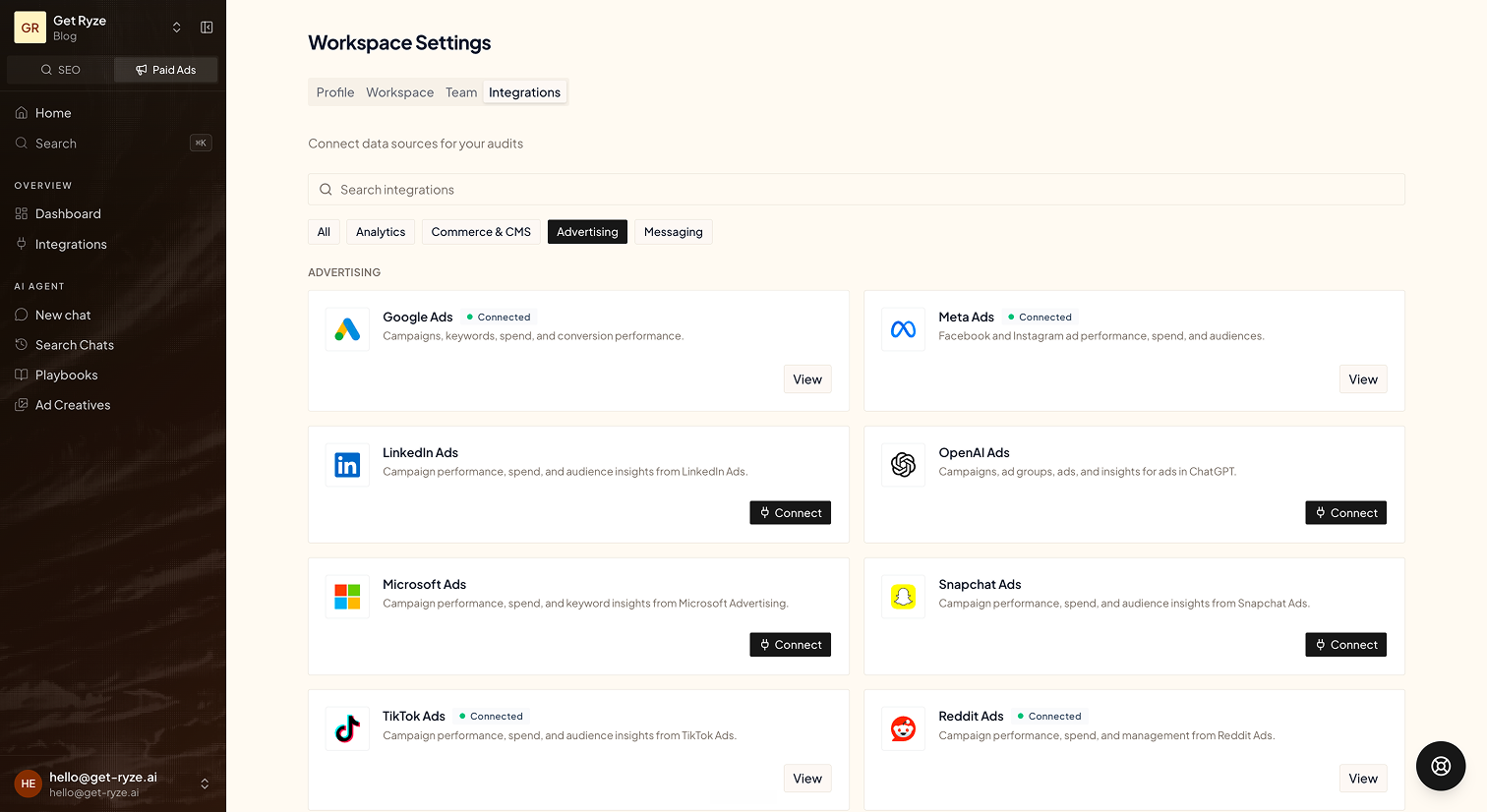
Connect Shopify, Google Ads, Meta Ads, and Google Analytics from the Ryze integrations page
Step 03
Install Claude Desktop
Download Claude Desktop from claude.ai/desktop and install on your computer. Sign in with your Claude Pro account. Remote connectors like Ryze also work on claude.ai in the browser, but Claude Desktop is the more reliable home for MCP and required if you ever add a local MCP server. After installation, open Claude and click your profile icon → Settings.
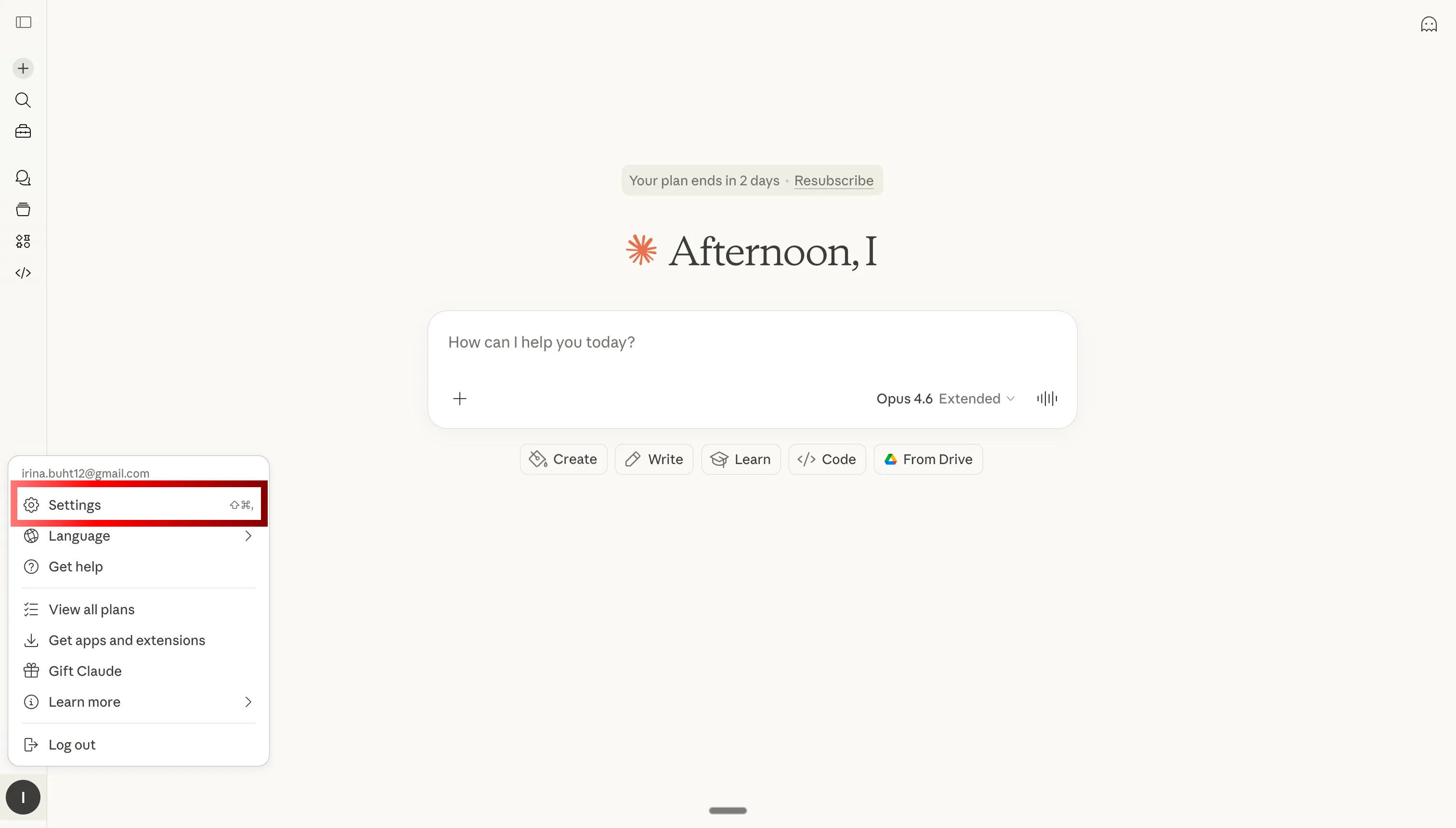
Click your profile icon and select Settings
Step 04
Add the MCP Connector
In Claude Settings, open the Connectors tab, scroll to the bottom, and click Add custom connector. Set the name to "Ryze AI" and paste your MCP URL from the Ryze dashboard into the URL field. Click Save.
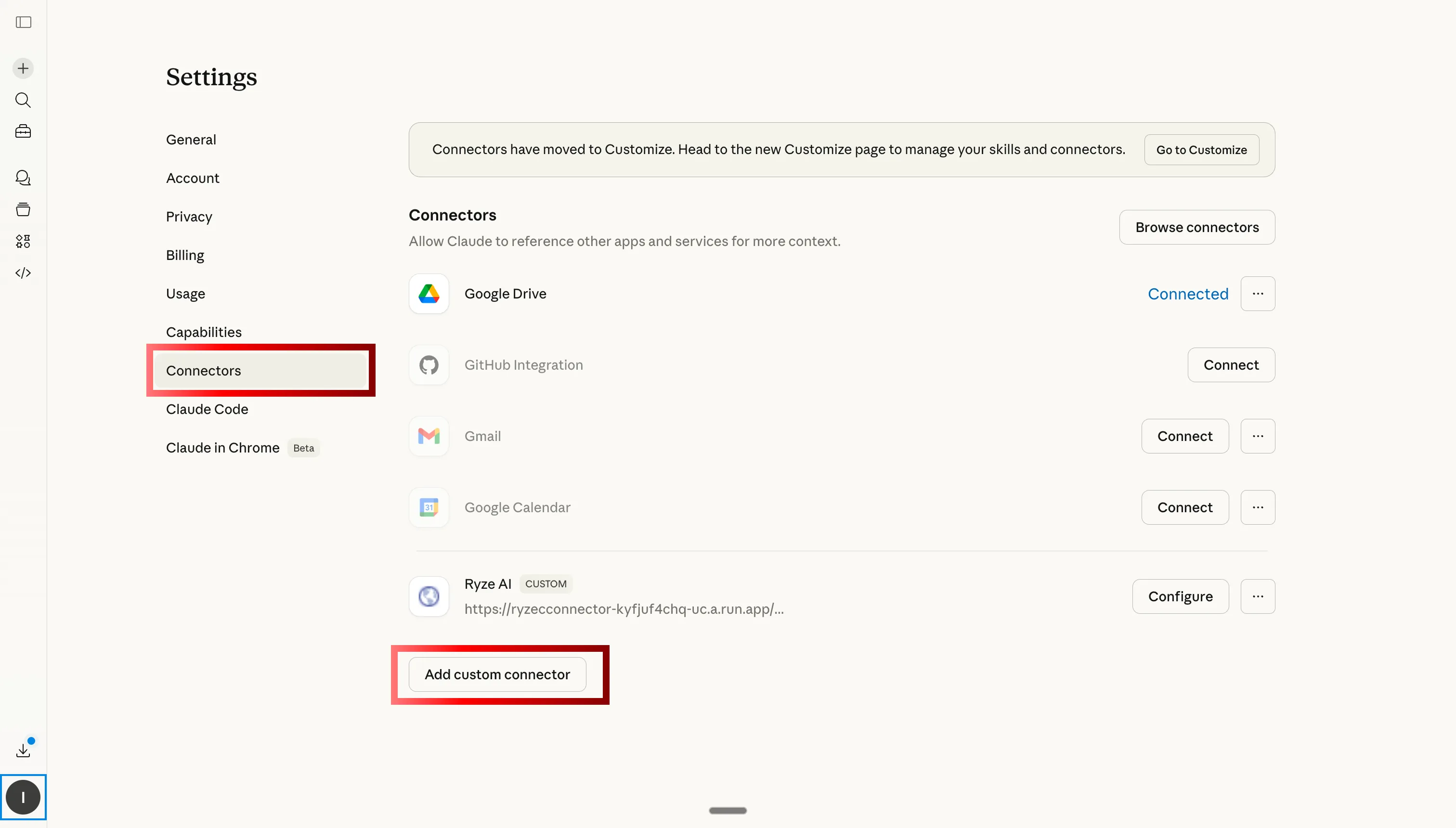
Open the Connectors tab and click “Add custom connector”
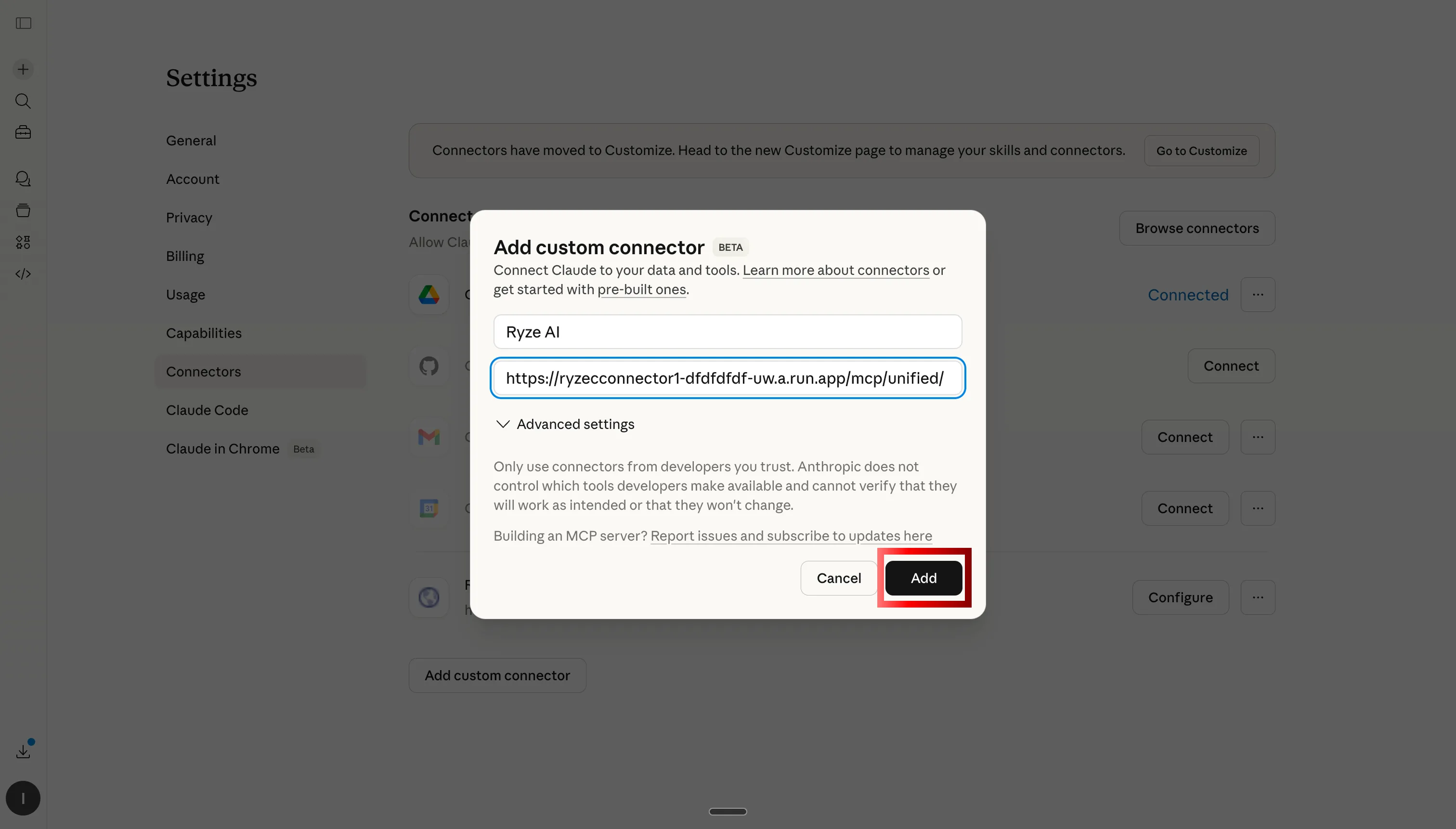
Paste the Ryze AI MCP URL — your Shopify store, orders, and catalog are now live in Claude
Step 05
Test the Connection
Restart Claude Desktop to load the new MCP server. Open a new conversation and type: "Show me my Shopify store’s sales for the last 7 days." If successful, Claude returns a formatted table with orders, revenue, and top products. If you see an error, check the MCP configuration and ensure your store is properly connected in the Ryze dashboard.
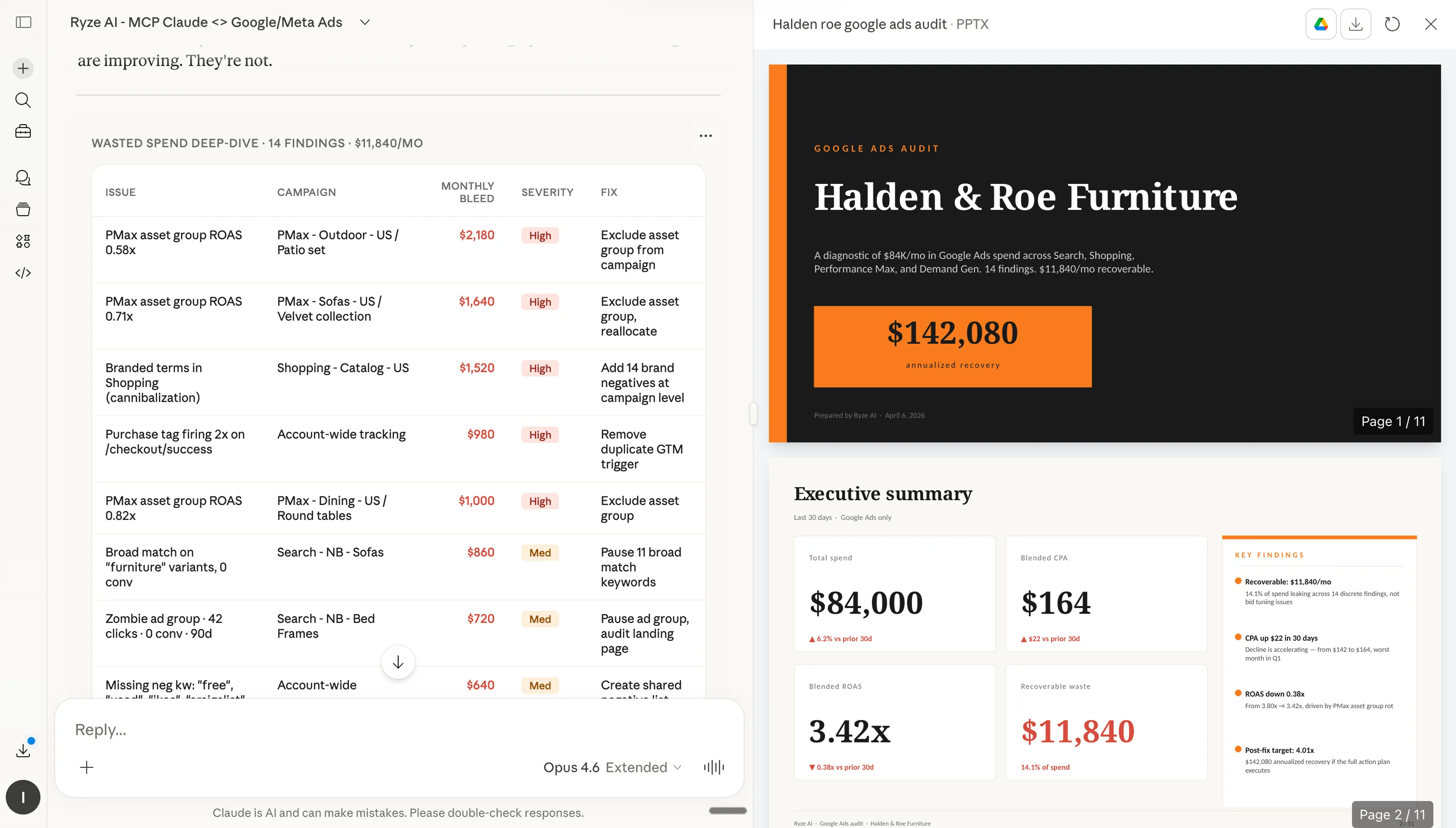
Claude querying your Shopify store in real time via MCP
Step 06
Verify Data Access
Test different data requests to confirm full functionality: "List my top 10 products by revenue," "Show conversion rate by collection this month vs last," and "Find products with thin or duplicate descriptions." Each query should return relevant data within 10-15 seconds. If any query fails, check your Shopify connection and the app’s data scopes.





Free SEO/GEO audit
- Surface technical SEO issues
- Spot quick wins
- Find duplicate and thin pages
Free · no credit card · instant
The workflows
What are the 12 Shopify workflows you can automate with Claude?
These workflows represent the most time-consuming Shopify store management tasks that Claude can handle automatically. Each workflow includes the specific prompts to use and expected outcomes. Together, these workflows can reduce your weekly Shopify store management time from 15 hours to under 3 hours.
Workflow 01
Product description SEO
Most stores carry hundreds of products with thin, duplicate, or vendor-default descriptions. Claude reads your catalog, flags pages that are too short, duplicated across variants, or missing the words shoppers search, then rewrites them for both search and conversion while keeping your brand voice. It works in batches so you review before anything publishes.
Workflow 02
Collection-page SEO
Collection pages are your highest-intent landing pages, yet most ship with an empty intro and a generic title tag. Claude audits every collection's title, meta description, and intro copy, then drafts optimized versions targeting the terms real buyers type.
Workflow 03
Conversion-rate (CRO) diagnosis
Point Claude at your order and session data and it finds where the funnel leaks: product page, cart, or checkout. It compares conversion rate by device, source, and collection, and ranks the biggest opportunities by revenue at stake instead of vanity percentages.
Workflow 04
Abandoned-cart analysis
Claude analyzes abandoned and recovered checkouts to surface the patterns behind them — price thresholds, shipping surprises, specific products — and turns them into recovery-email angles and on-site fixes.
Workflow 05
Pricing and margin analysis
Revenue hides money. Claude joins product cost and price data to show true margin by product and collection, flags items you are discounting below target margin, and models the profit impact of a price change before you make it.
Workflow 06
Product review mining
Your reviews are a free research panel. Claude clusters them into themes — what buyers love, what they return, sizing and quality complaints — and turns the signal into product copy, FAQ entries, and a fix roadmap.
Workflow 07
Bestseller and inventory analysis
Claude reads sell-through and stock levels to tell you what to restock, what to push, and what is quietly tying up cash — so you stop stocking out on winners and over-ordering on slow movers.
Workflow 08
Customer segmentation and LTV
Claude segments customers by recency, frequency, and value (RFM), surfaces your repeat-buyer cohorts, and shows which acquisition sources produce the highest lifetime value — so you market to the right people, not just the most.
Workflow 09
Structured-data and rich-snippet audit
Rich snippets (price, rating, availability) lift click-through straight from search results. Claude audits your product structured data and meta tags, flags missing or invalid fields, and tells you exactly what to set to qualify.
Workflow 10
Discount and promotion performance
Not every promo makes money. Claude measures each discount and code by incremental revenue and margin — not just redemptions — so you repeat the profitable ones and retire the rest.
Workflow 11
Cross-sell and bundle recommendations
Claude finds the products customers actually buy together and turns them into bundles and 'frequently bought together' offers that lift average order value without new traffic.
Workflow 12
Weekly store performance report
Every Monday, ask once and get a clean executive summary: revenue, orders, AOV, conversion rate, top and bottom movers, and the three things worth acting on — no dashboard archaeology.
What are common issues when connecting Claude to Shopify?
Issue 1: "MCP server not found" error. This occurs when Claude Desktop can't locate or start the MCP server. Solution: Verify Node.js 18+ is installed, check the MCP configuration syntax for typos, and ensure the API key is valid. Restart Claude Desktop after making configuration changes. If using Windows, check that NPX is in your system PATH.
Issue 2: Authentication failures or "Access denied" messages. Shopify API has strict permission requirements. Solution: Confirm you are the store owner or a staff account with permission to install apps. Check that all required scopes were granted when you approved the app. Re-authenticate through the Ryze dashboard if permissions have changed. Some organizations restrict app installs—check with the store owner.
Issue 3: Timeout errors or slow responses. Stores with very large catalogs or order histories may exceed API response time limits. Solution: Use date ranges and filters to limit data volume. Request a specific collection or product set instead of the whole catalog. The Shopify API rate-limits requests per second rather than per day, so large pulls work fine when split into smaller batches.
Issue 4: Incomplete or missing data in responses. API responses depend on your app's access scopes and data availability. Solution: Check that requested date ranges have sufficient data (avoid the last 1-2 days for complete conversion data). Verify the app was granted every scope a query needs (orders, customers, inventory). Some analyses, like RFM segmentation, only become meaningful with enough order history.
Issue 5: Claude responses seem inaccurate or outdated. This usually indicates data freshness issues or the wrong store connected. Solution: Verify the correct store (your-store.myshopify.com) is connected in your Ryze dashboard, especially if you manage several. Check that you're analyzing the intended time periods. Cross-reference a few metrics manually in Shopify admin to confirm data accuracy.
Skip the prompts. Shopify on autopilot.
- ✓Automates Google, Meta + 5 more platforms
- ✓Handles your SEO end to end
- ✓Upgrades your website to convert better
2,000+
Marketers
$500M+
Ad spend
23
Countries
How does Claude compare to other Shopify automation tools?
Claude excels at analysis and recommendations but requires human implementation. Dedicated Shopify store management platforms offer autonomous optimization with built-in execution capabilities. The choice depends on your preference for control versus automation level.
| Feature | Claude + MCP | Shopify Scripts | Ryze AI | Optmyzr |
|---|---|---|---|---|
| Setup complexity | Low (with Ryze) | High (coding required) | Very low | Medium |
| Executes changes | No (recommends only) | Yes (custom logic) | Yes (autonomous) | Yes (with approval) |
| Natural language queries | Excellent | None | Good (chat interface) | Limited |
| Monthly cost | $20 (Claude Pro) | Free | Subscription | $200+ |
| Learning curve | Low | High | Very low | Medium |
Claude is ideal for marketers who want AI-powered analysis while maintaining control over implementation. It excels at explaining complex patterns, generating insights, and providing strategic recommendations. For fully hands-off optimization, platforms like Ryze AI handle execution automatically with built-in safety guardrails. For more detailed comparisons, see Claude Skills for Google Ads.
1,000+ marketers use Ryze





Automating hundreds of agencies





 ★★★★★
★★★★★
